
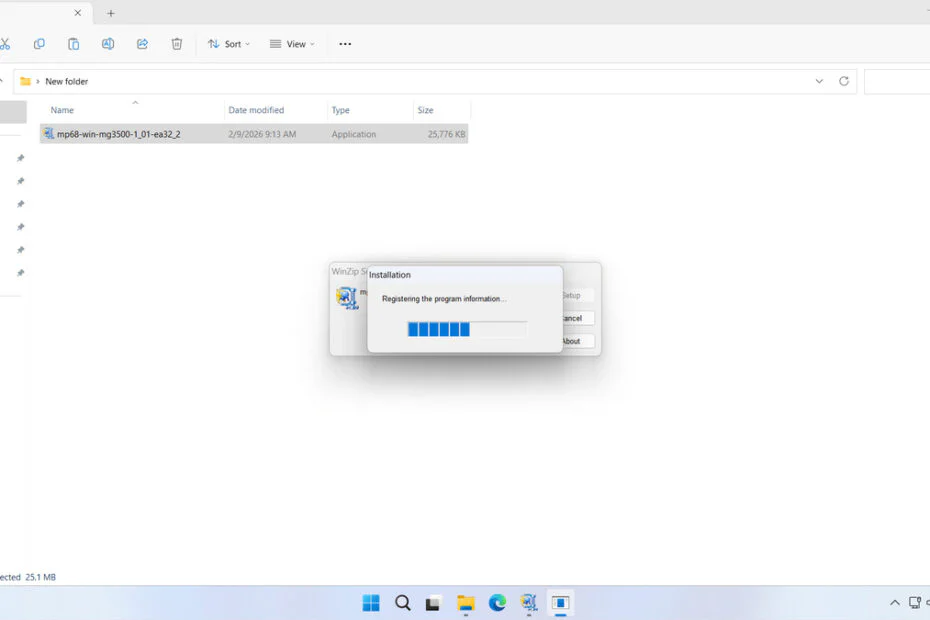
Canon 3500 Printer Driver is software that must be installed for the Canon Pixma MG3500 printer to run smoothly on Windows operating systems. However, after our research, it turns out that obtaining the Canon Pixma MG3500 driver software is quite confusing, even on Canon’s official website.
For that reason, below we will provide a download link for the Canon 3500 Printer Driver, along with a guide on how to install this printer driver software on Windows 11.
Table of Contents
- Why Software Drivers Are Important
- System Requirements
- How to Install Canon 3500 Printer Driver
- Download Canon 3500 Printer Driver Here
Why Software Drivers Are Important
The Canon 3500 Printer Driver is very important to install, especially for those of you using the Windows operating system. Without the driver software, when you try to print documents in popular applications like Microsoft Word, Microsoft Excel, and others, you won’t be able to find your printer name, Canon MG3500, in those applications, so you won’t be able to print documents.
In addition, the driver software included with the Canon MG3500 will play an important role when you need to perform maintenance or when your printer experiences an error. That is why the Canon 3500 Printer Driver is very important to install.
System Requirements
Here we only provide the Canon 3500 Printer Driver for Windows operating systems. So, for those of you using other operating systems like macOS and Linux, you can look for the driver software on other alternative sites. Below is a list of Windows OS versions that support the Canon 3500 Printer Driver that we provide here.
Windows OS Supported
- Windows 11
- Windows 10
- Windows 8/8.1
- Windows 7
- Windows Server
How to Install Canon 3500 Printer Driver
1. Before you install the Canon 3500 Printer Driver, it is important to make sure that your printer is turned on and connected to the computer where you will install the driver software.
2. After that, you can download the Canon 3500 Printer Driver through the link below this article.
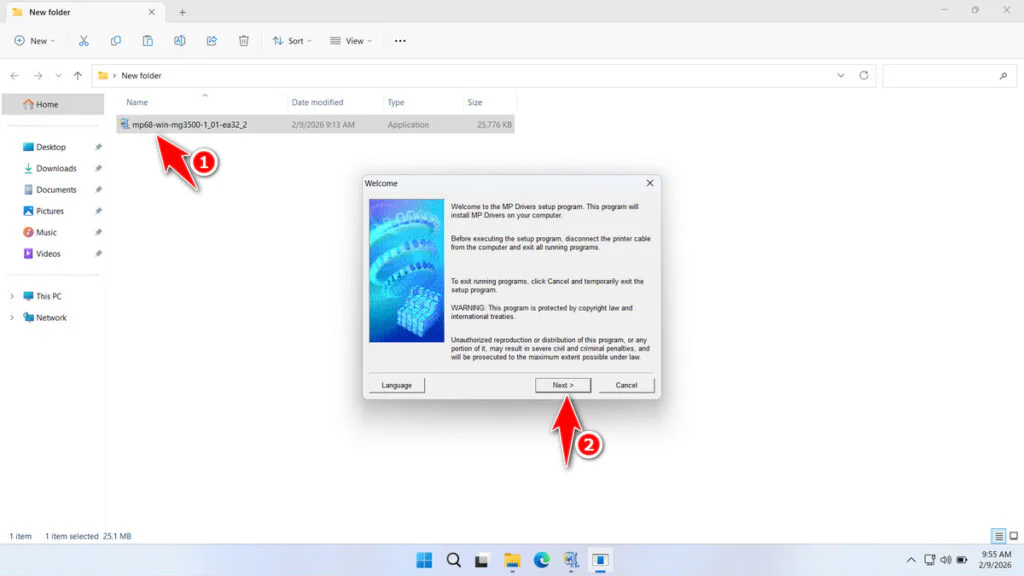
3. After you download the software driver, please double-click to install it. Then click Next to continue.
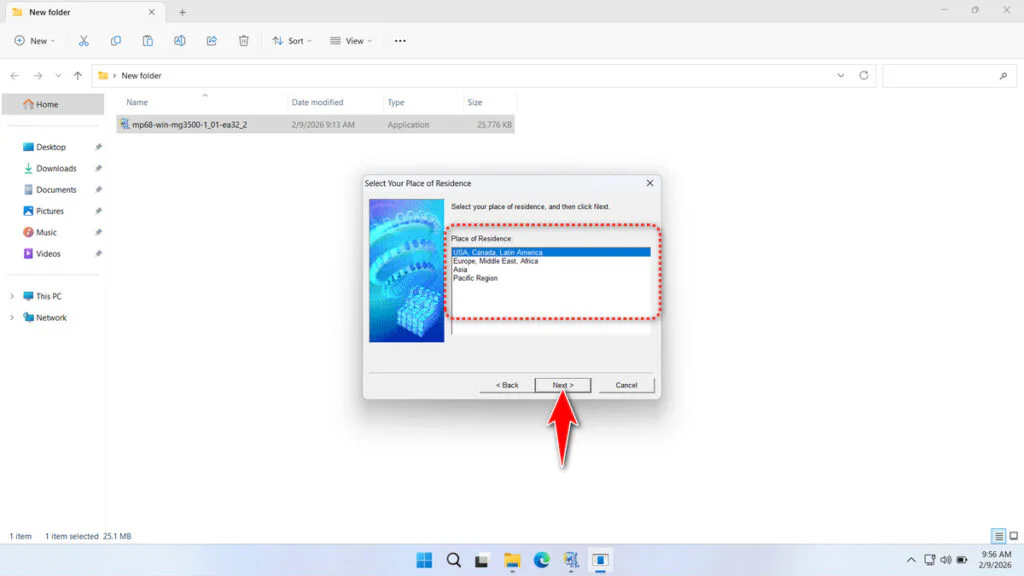
4. Select your region and then click Next.
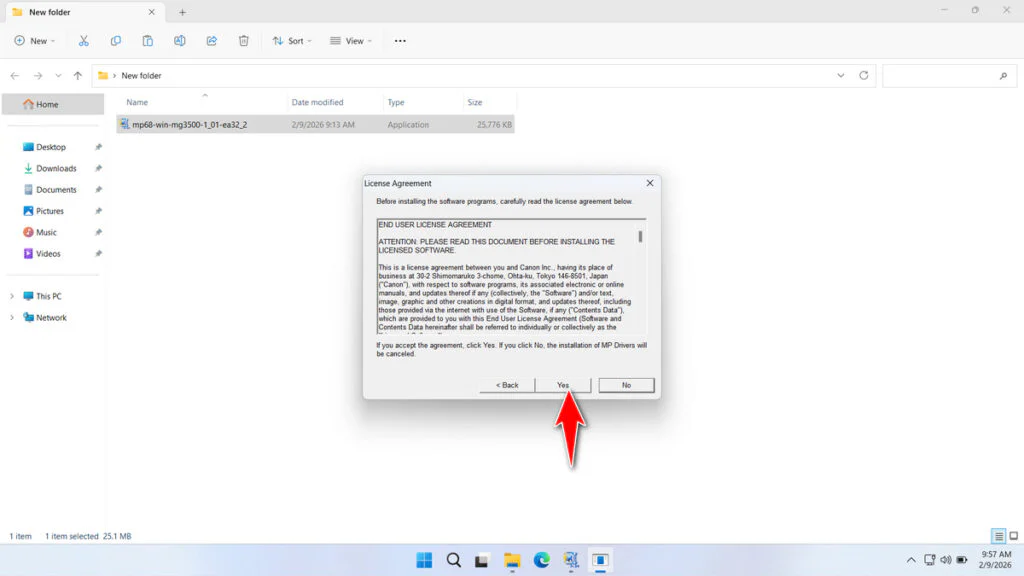
5. Click Yes to agree to the license agreement.
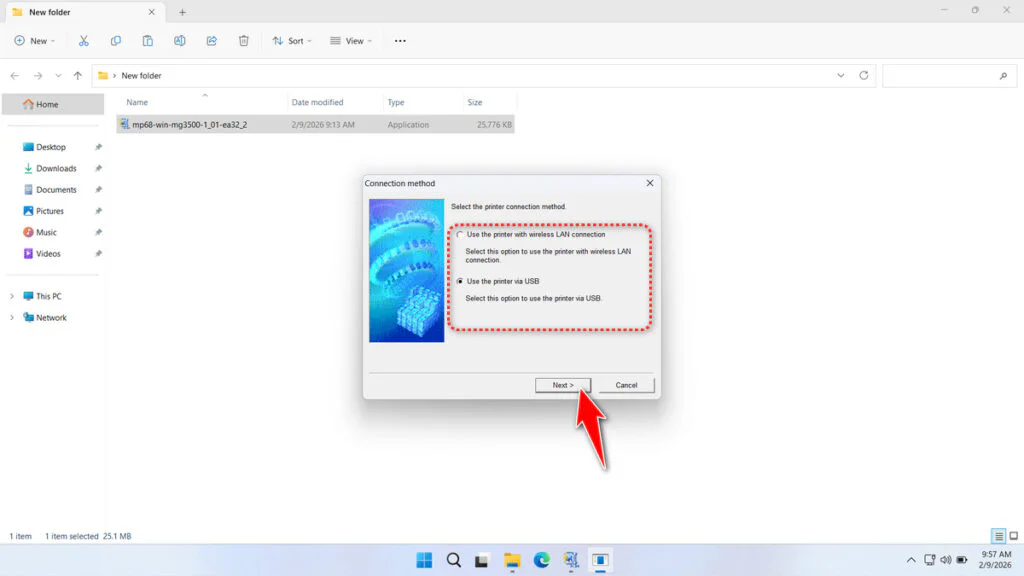
6. Select your printer connection type, then click Next.
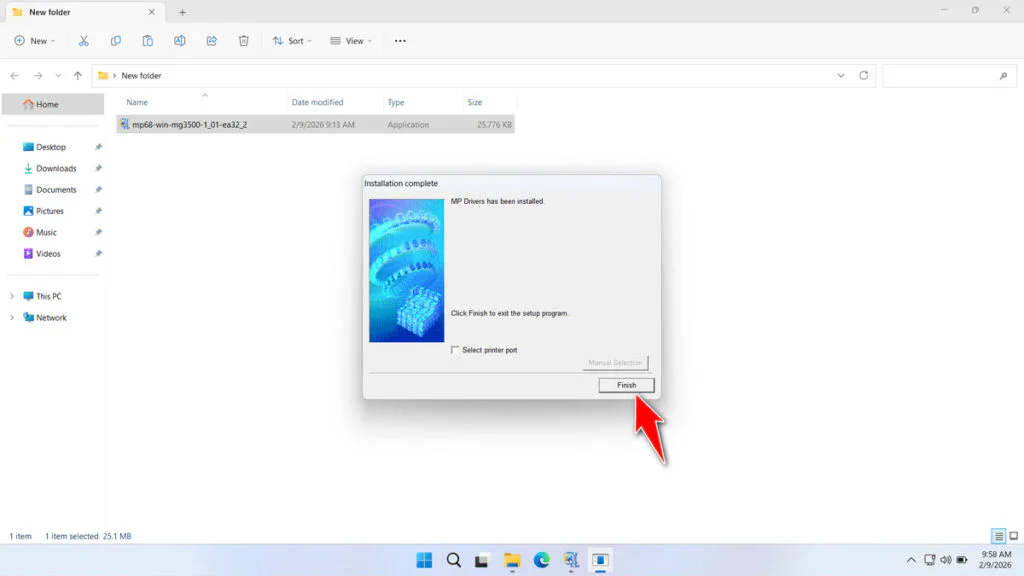
7. After the driver software is installed, click Finish.
Download Canon 3500 Printer Driver Here
The Canon 3500 Printer Driver that we share here is the driver software that we obtained from the official Canon website, and we guarantee that the driver software is safe for you to install and use on your Windows operating system.
For Windows operating system users who need the Canon 3500 Printer Driver, you can download the driver software through several links provided below.
File Size: 25.1MB
File Type: .EXE
OS Support: Windows 11/10/8/8.1/7/Server
Maybe you would like other interesting articles?