
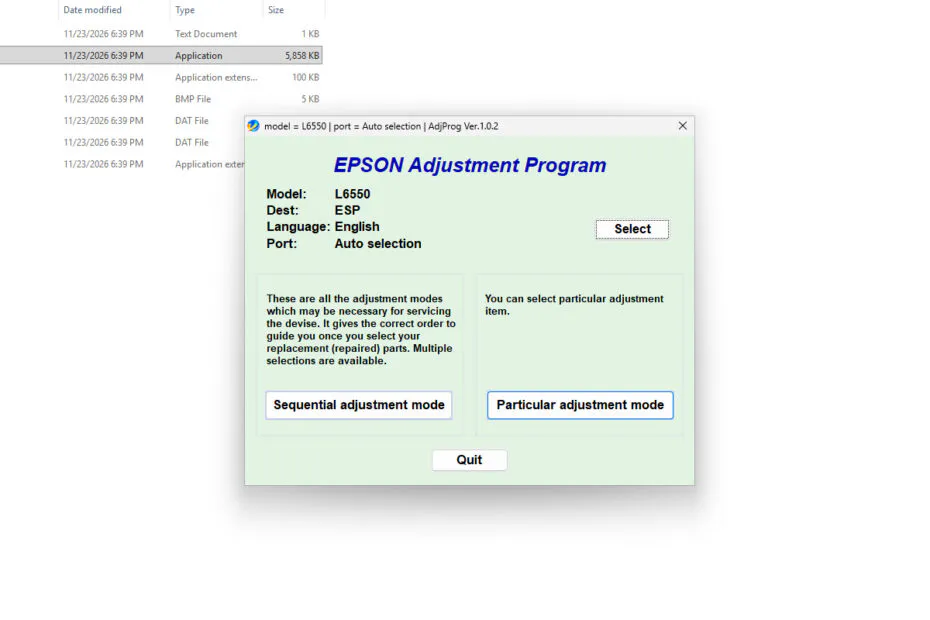
Epson L6550 Resetter is an adjustment program designed to reset the Waste Ink Pad counter on Epson L6550 printers. In addition, this resetter software is also very useful for performing other maintenance on the Epson L6550 printer.
Below, we will provide a guide on how to use the Epson L6550 Resetter, along with a link where you can get the resetter software for this printer.
Table of Contents
When Need a Resetter?
A resetter is very needed in emergency situations when we urgently need the printer to print documents, but the printer cannot be used and displays error messages like ‘Service required’ or ‘A printer’s ink pad is at the end of its service life.’ This is where the function of a resetter becomes very necessary.
In addition, resetter software is also very useful for performing other maintenance on the printer, such as performing unlimited Power ink flushing.
How to Use Epson L6550 Resetter
1. Before downloading the resetter and performing a reset on the printer, first make sure the printer is turned on and connected to your Windows PC. In addition, temporarily disable the antivirus so that the reset process runs smoothly.
2. After that, you can download the Epson L6550 Resetter through the link below this article.
3. Extract the resetter file that you have downloaded by right-clicking on the file, then select Extract All.
4. Open the downloaded resetter folder and run the file named Adjprog.exe by double-clicking on the file.
5. If the Windows SmartScreen appears, please click More info > Run anyway.
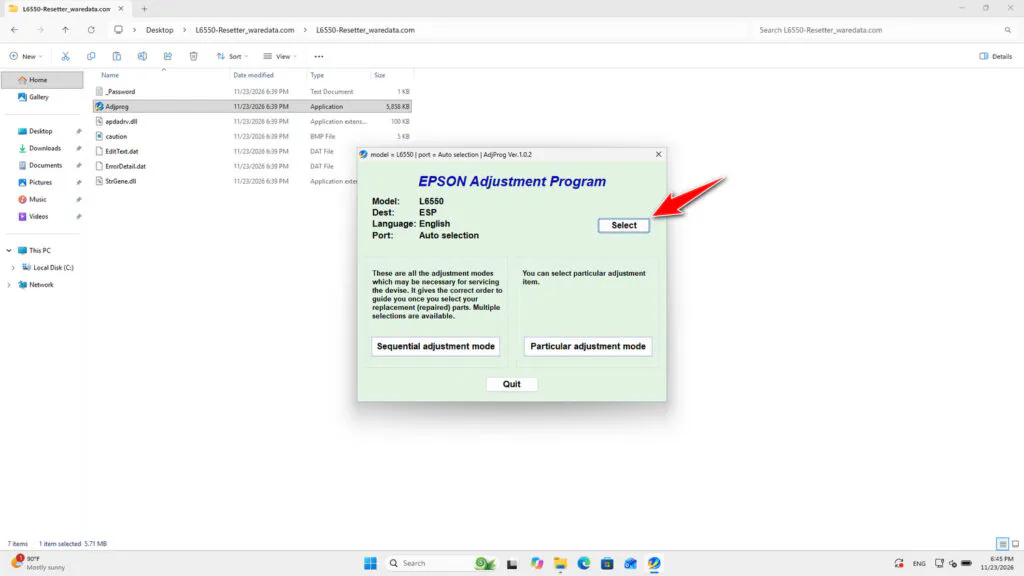
6. When the resetter software is successfully run, please click the SELECT button.
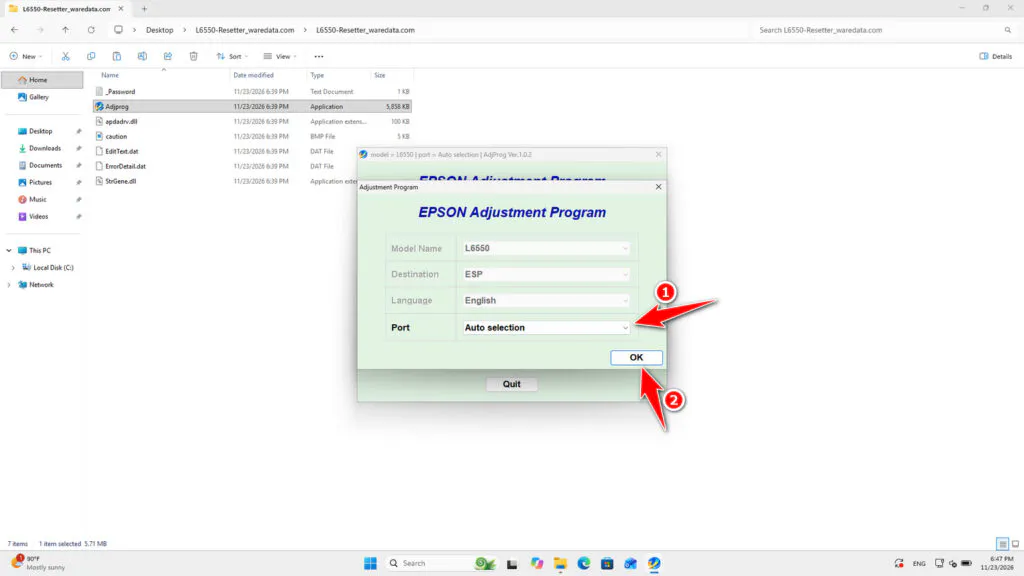
7. You can choose the port manually or use the Auto Selection option, and once done, click OK.
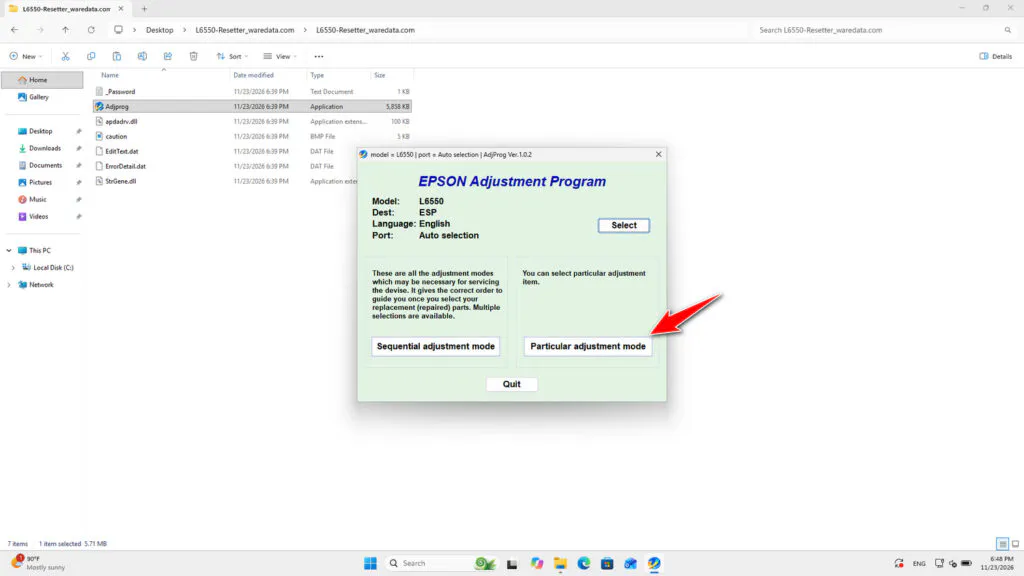
8. Click the Particular adjustment mode button.
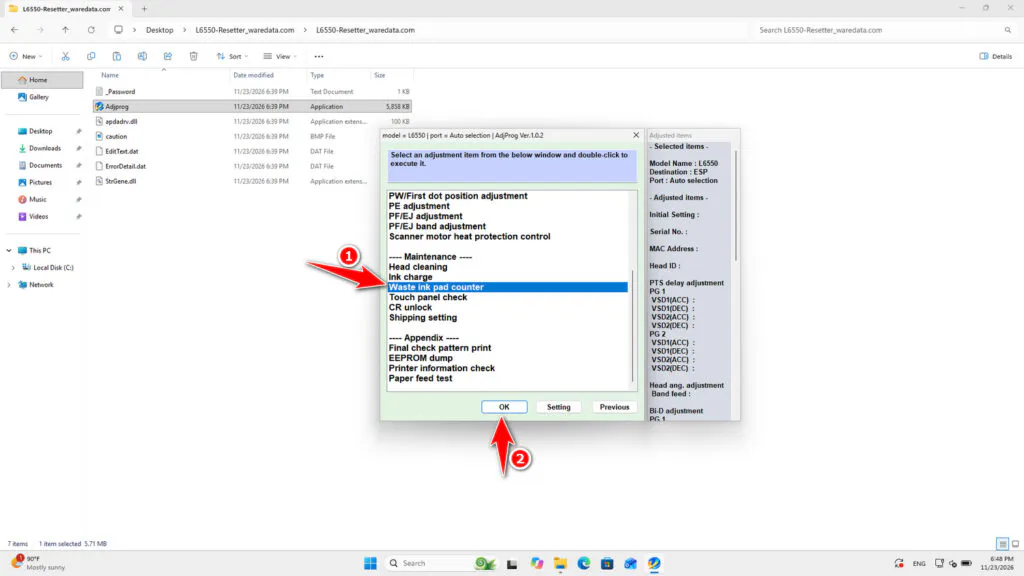
9. Select Waste ink pad counter, then click OK.
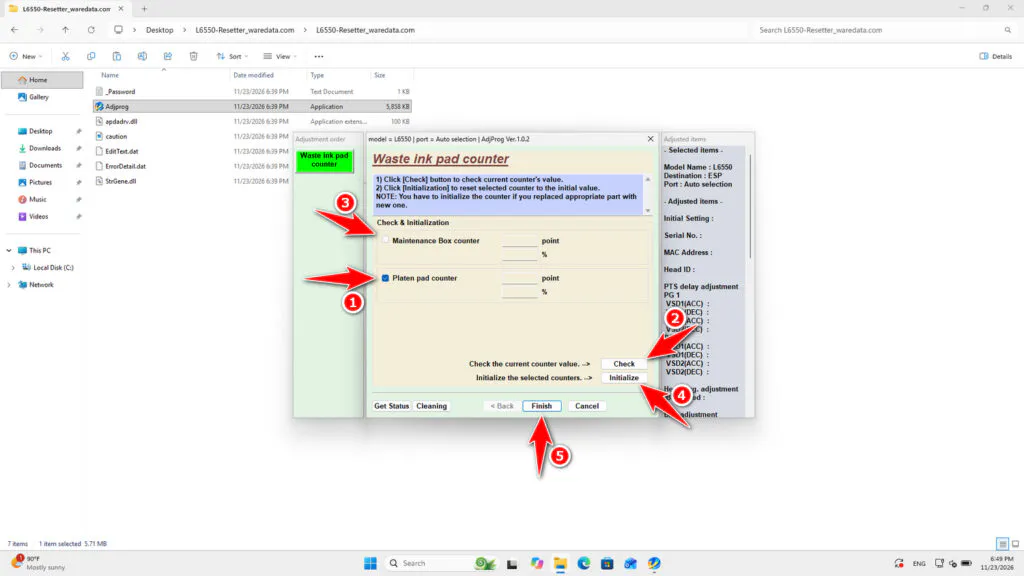
10. Tick the Platen pad counter option, then click the Check button. After that, also tick the Maintenance Box Counter, then click Initialize. If the reset process is successful, immediately turn off the printer, then you can turn the printer on again afterward. You can click the Finish button to end the process.
11. If the reset process fails, you can try moving the printer’s USB cable to another port available on your computer. Then you can try resetting the printer again.
Epson L6550 Resetter Download
For users of the Epson L6550 printer who need resetter software for that printer. You can download the resetter software through the following link.
File Size: 5.43
File Type: .ZIP
OS: Windows
Maybe you would like other interesting articles?