
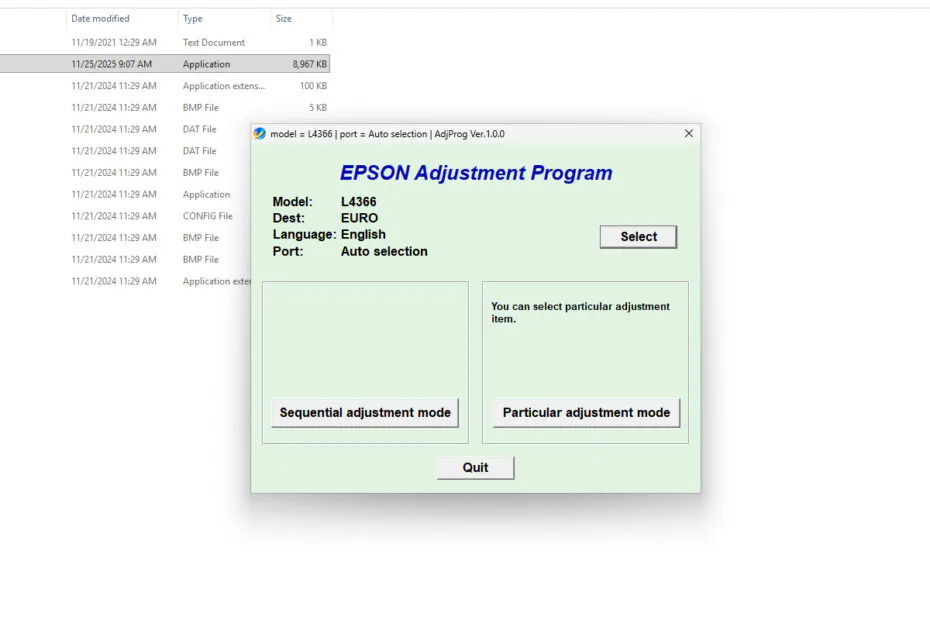
Epson L4366 & L4367 Resetter is an adjustment program software used to perform maintenance on Epson L4366 and L4367 printers.
The main maintenance of this resetter software is to clean the Ink System pad counter and the Platen pad counter, while the Maintenance box counter can’t be used with this resetter because Epson has embedded it directly into the printer’s electronics.
Below, we will provide the download link for the Epson L4366 & L4367 Resetter, along with its usage on Windows 11.
Table of Contents
- What are the functions of this resetter?
- How to Use Epson L4366 & L4367 Resetter
- Epson L4366 & L4367 Resetter Download
What are the functions of this resetter?
Actually, besides cleaning the Ink System on the counter pad and the platen pad counter, this resetter software is also really useful for doing other maintenance without limits, like the printer’s default software, for example, things like Ink Flushing, which are usually limited in Epson’s built-in software.
How to Use Epson L4366 & L4367 Resetter
1. For cleaning the Ink System pad counter and Platen pad counter, before downloading and using the resetter, make sure the printer is turned on and connected to a Windows PC. Also, make sure to temporarily disable the antivirus.
2. After that, you can download the Epson L4366 & L4367 Resetter through the link below this article.
3. Extract the resetter file that has been downloaded by right-clicking on the file and then selecting Extract All.
4. Open the folder with the extracted files, then run the file named AdjProg.exe by double-clicking it.
5. If the Windows Defender smart screen pops up, just click More info > Run anyway.
6. The first time you run the resetter, you’ll be asked for the password stored in the _Password.txt file.
7. After the resetter successfully opens, you can click the SELECT button.
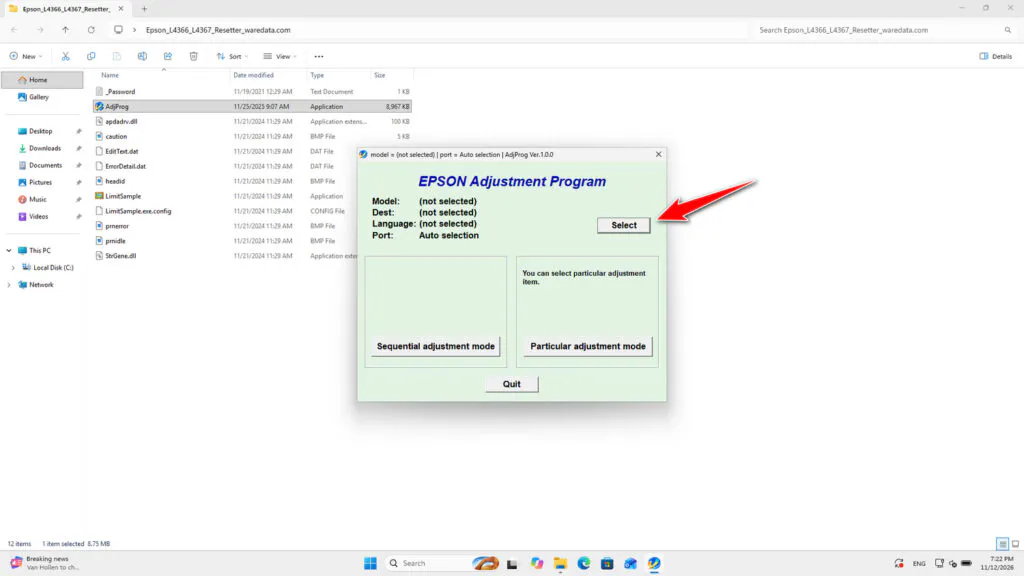
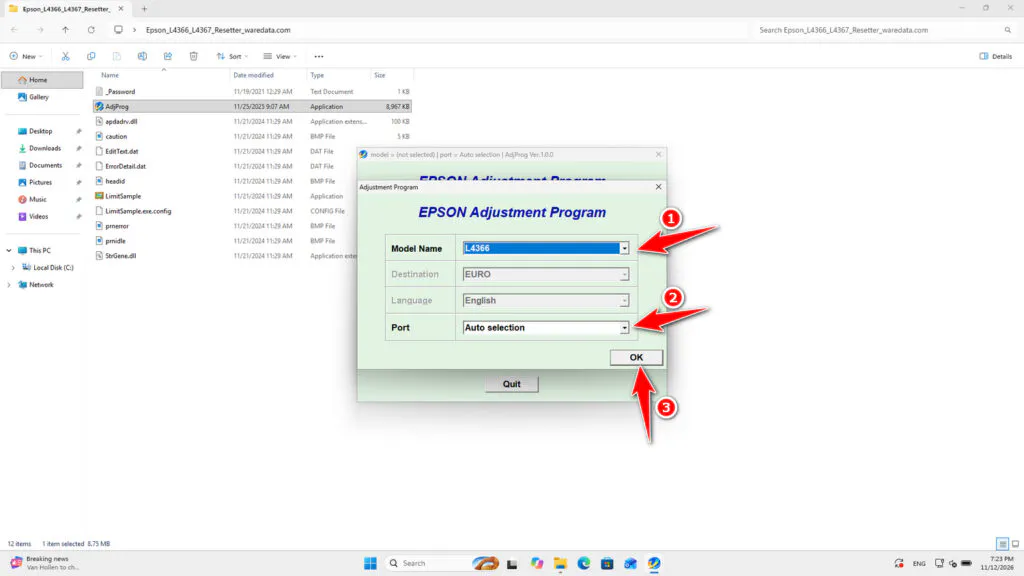
8. Choose the printer model and its port; you can use an automatic port or a manually detected port.
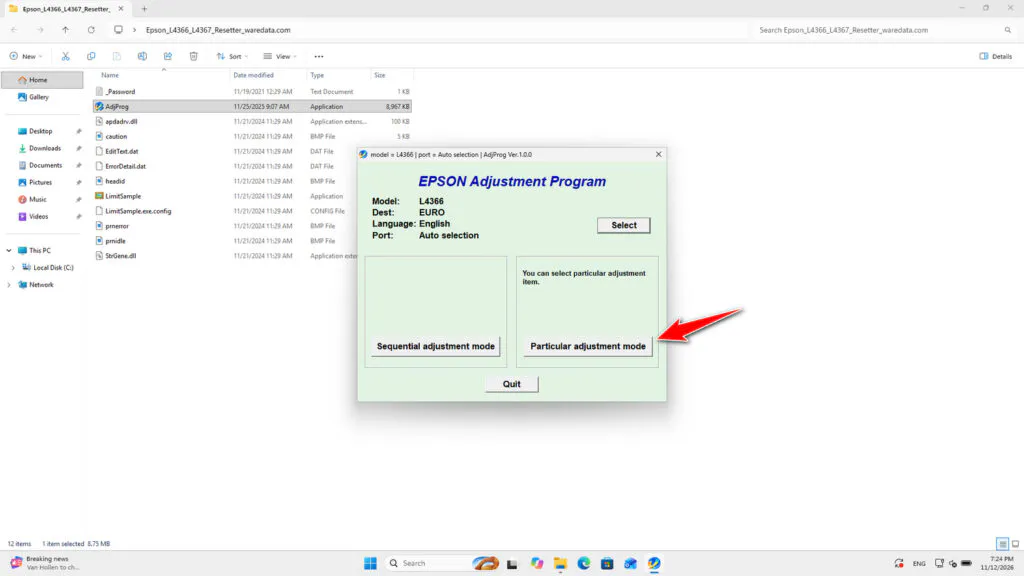
9. Click the Particular adjustment mode button.
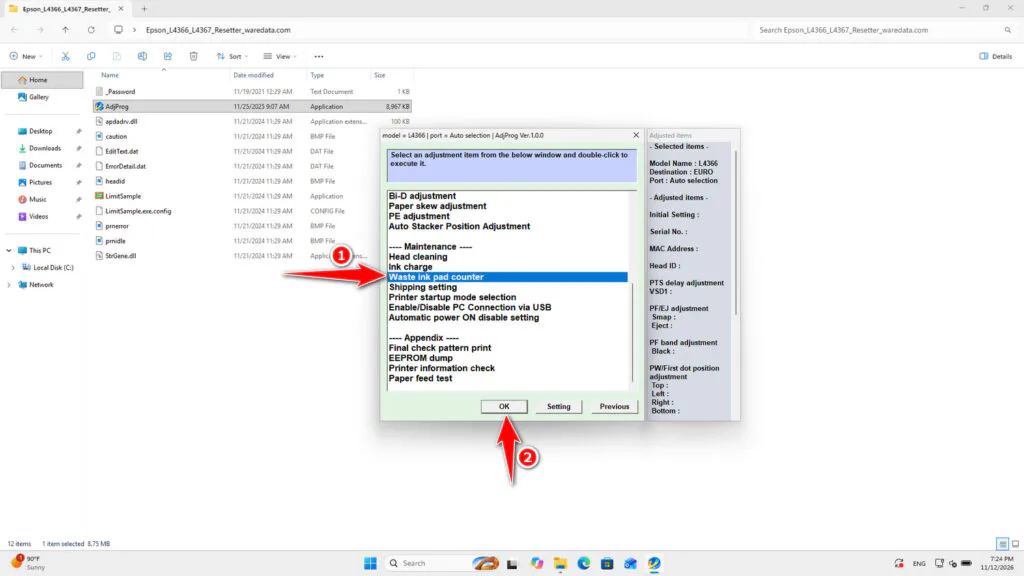
10. Select Waste ink pad counter and then click OK.
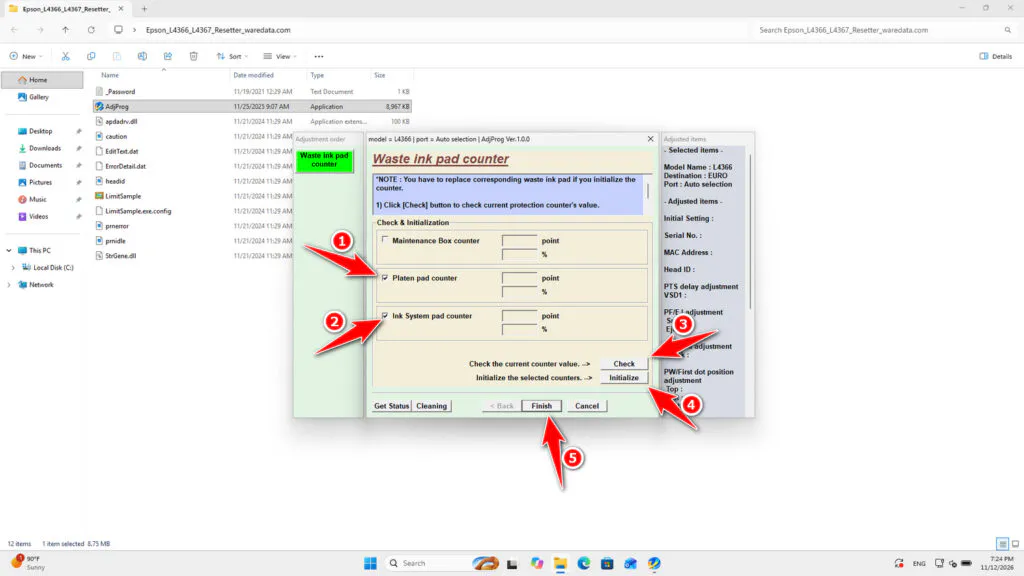
11. Tick the Platen pad counter and the Ink System pad counter. Then click the Check button, and click the Initialize button. After successfully resetting, immediately turn off the printer; then you can turn it on again afterwards. Once done, to finish, you can click the Finish button.
12. If the reset process fails, you can try moving the printer’s USB cable to another available port on your Windows PC. Then you can do the reset again, and also make sure the antivirus is temporarily turned off.
Epson L4366 & L4367 Resetter Download
For those of you who have an Epson L4366 or L4367 printer and are in need of a resetter for maintenance, you can download the resetter software through the following link.
File Size: 9.01MB
File Type: .ZIP
OS Support: Windows
Maybe you would like other interesting articles?