
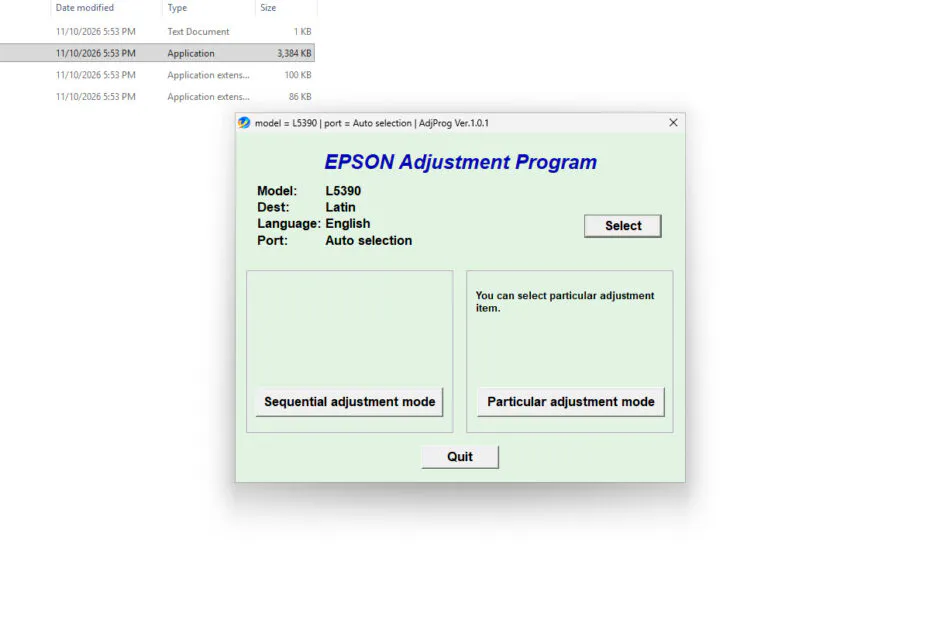
Epson L5390 Resetter is an adjustment program used to reset the Waste Ink Pad counter on Epson L5390-type printers.
The waste ink pad counter itself is an electronic record in an Epson printer that, when the count reaches a certain limit, the printer often cannot be used. For that reason, resetter software such as that for the Epson L5390 printer is necessary.
Below, we will share a download link for the Epson L5390 Resetter, along with a guide on how to use it on Windows 11.
Table of Contents
- The Benefits of Having Resetter Software
- How to Use Epson L5390 Resetter
- Epson L5390 Resetter Download
The Benefits of Having Resetter Software
When you are in an emergency and need to print documents but your printer cannot be used because the waste ink pad counter is full, you can solve this problem on your own at home, without needing to take it to a service center first.
Usually, a waste ink pad counter that is full will cause the printer to display the warnings “Service required”, “A printer’s ink pad is at the end of its service life”, and make the printer completely unusable.
How to Use Epson L5390 Resetter
1. Before you download and start the reset process, first make sure the printer is turned on and connected to your Windows PC. Then, for the time being, you also need to disable all antivirus software on your Windows PC.
2. You can then download the Epson L5390 resetter via the link below this article.
3. Extract the downloaded resetter file by right-clicking on the file and then selecting Extract All.
4. Open the resetter folder from the extraction results and run the file AdjProg.exe by double-clicking on the file.
5. If Windows Defender SmartScreen appears, you can click More Info > Run anyway.
6. When you first open the resetter, you also need the password stored in the _Password.txt file inside the resetter folder.
7. After the resetter is open, please click the SELECT button.
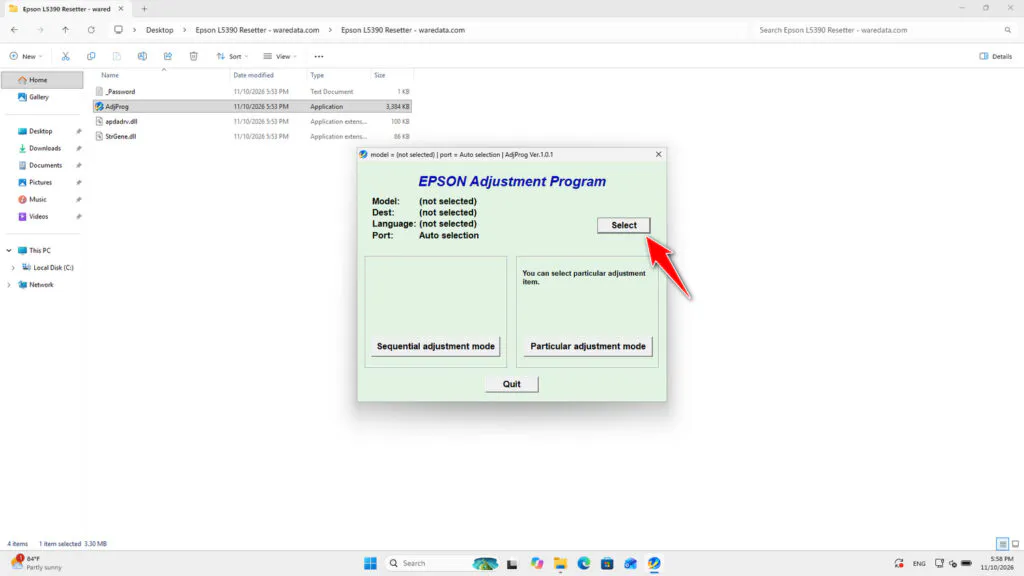
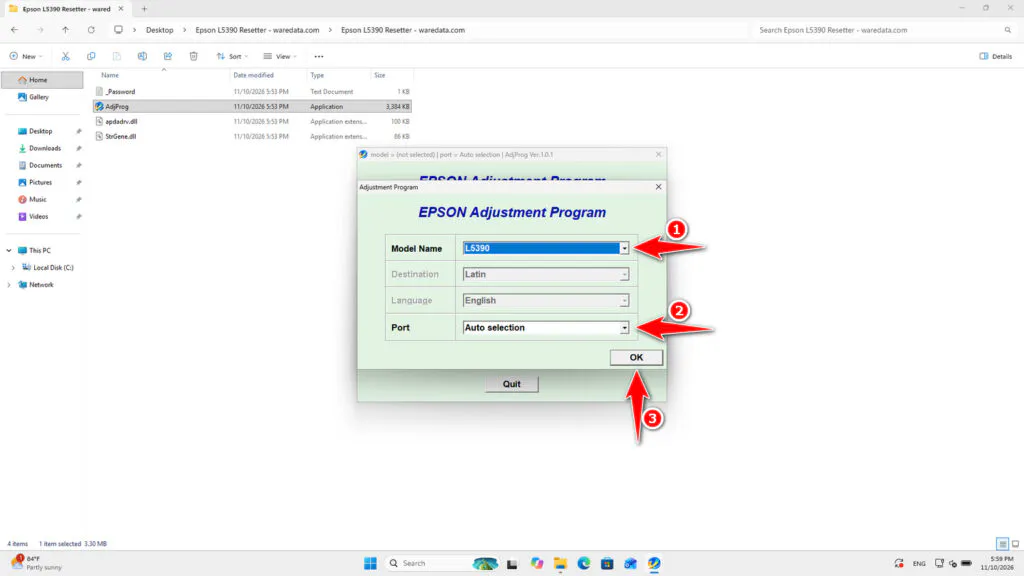
8. Select the printer model along with its port (you can use the automatic port), then click OK.
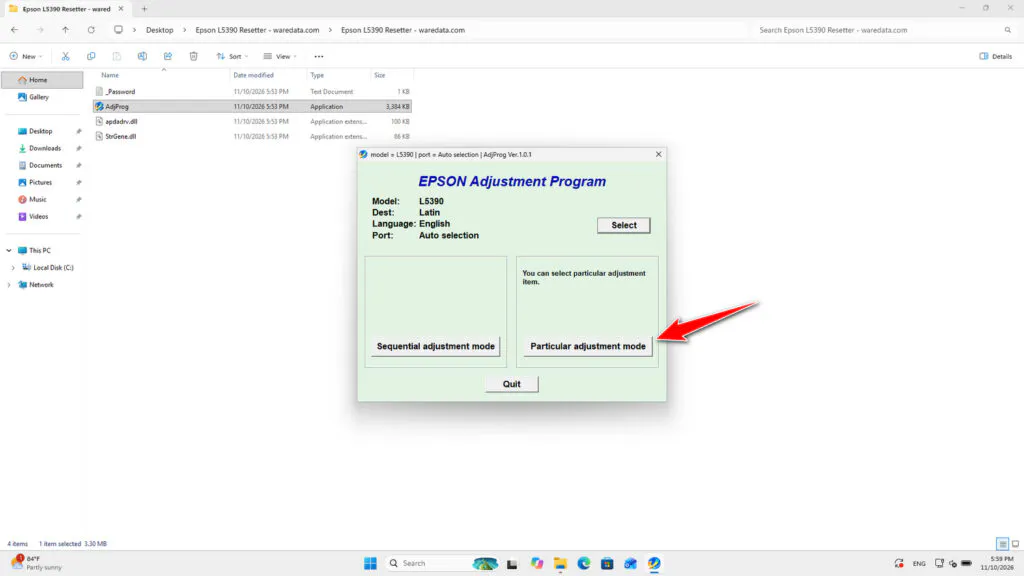
9. Then click the Particular adjustment mode button.
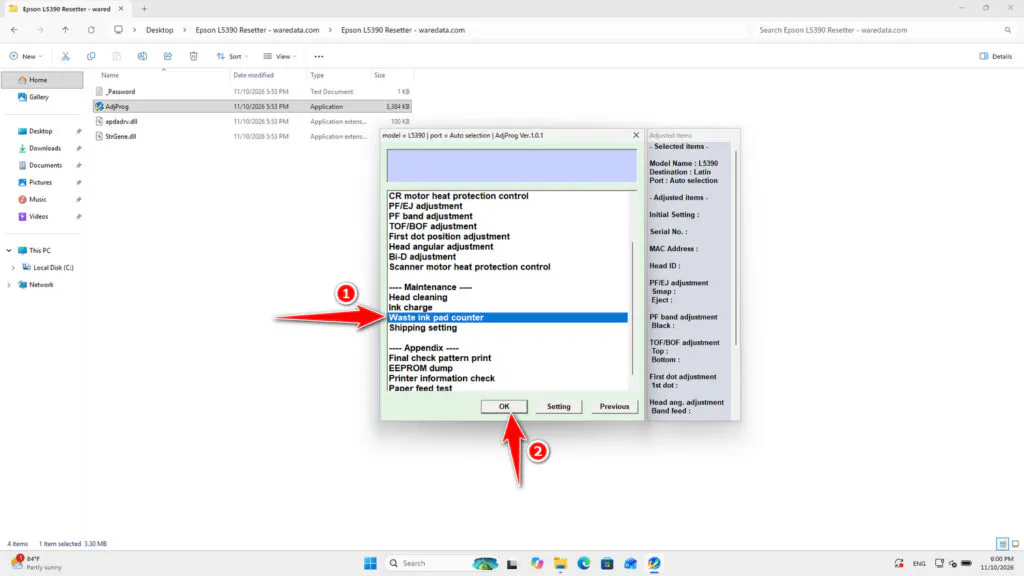
10. Select Waste ink pad counter, then click OK.
11. Tick the Main pad counter, Platen pad counter, and Ink System pad counter options, then click the Check button; after that, click the Initialize button.
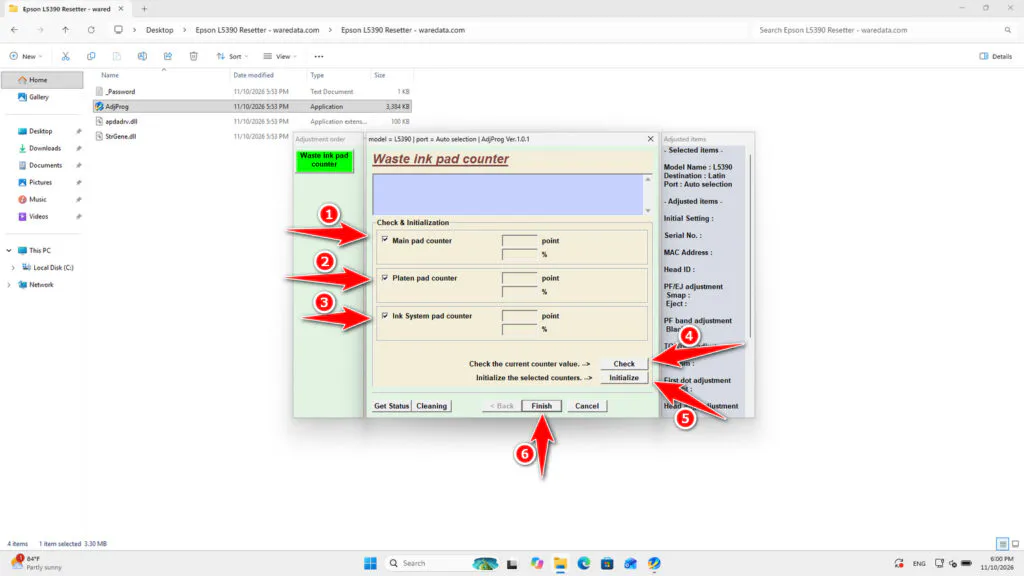
12. Immediately turn off the printer if the reset process is successful; then you can turn the printer back on. However, if the reset process fails, you can try moving the printer’s USB cable to another port available on your computer. Then try the reset process again until it succeeds.
Epson L5390 Resetter Download
For those of you who have an Epson L5390 printer and need a resetter to clean the Waste Ink Pad Counter, you can download the resetter software through the following link.
File Size: 3.35MB
File Type: .ZIP
OS Support: Windows
Maybe you would like other interesting articles?