
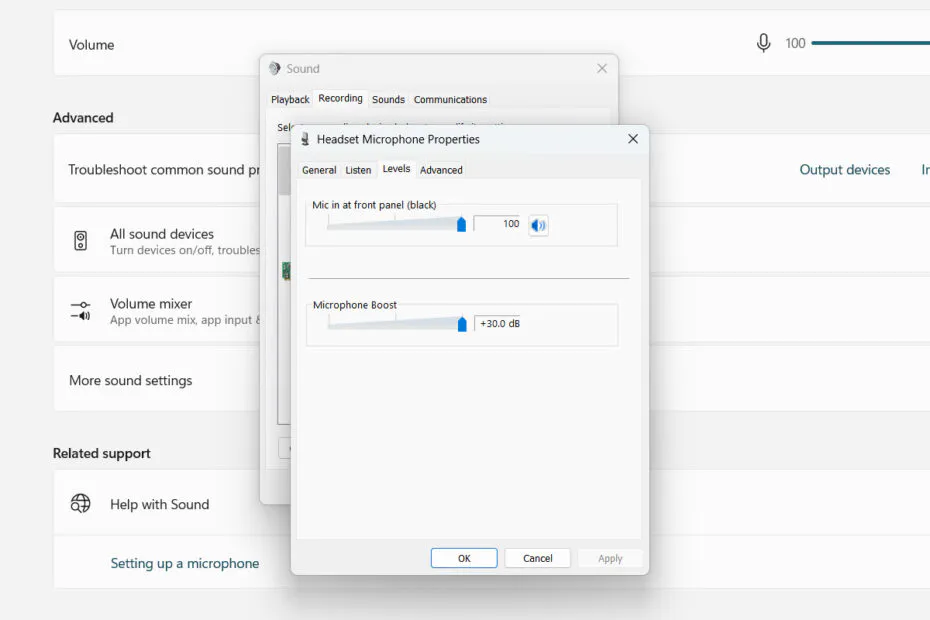
Boosting mic audio in Windows 11 is very useful when the mic sound is too quiet while we are recording, whether for video recording or audio-only recording.
Actually, in Windows 11, there is a feature to boost the Mic audio beyond its normal limit, which is often shown in the slider indicator that only goes up to 100%. The location of this audio mic enhancement configuration is indeed a bit hidden, so it requires a little carefulness to find.
In this article, we will provide a guide on how you can increase your microphone volume on Windows 11, even if your mic indicator is already at 100%.
Steps on How to Boost Mic Audio on Windows 11
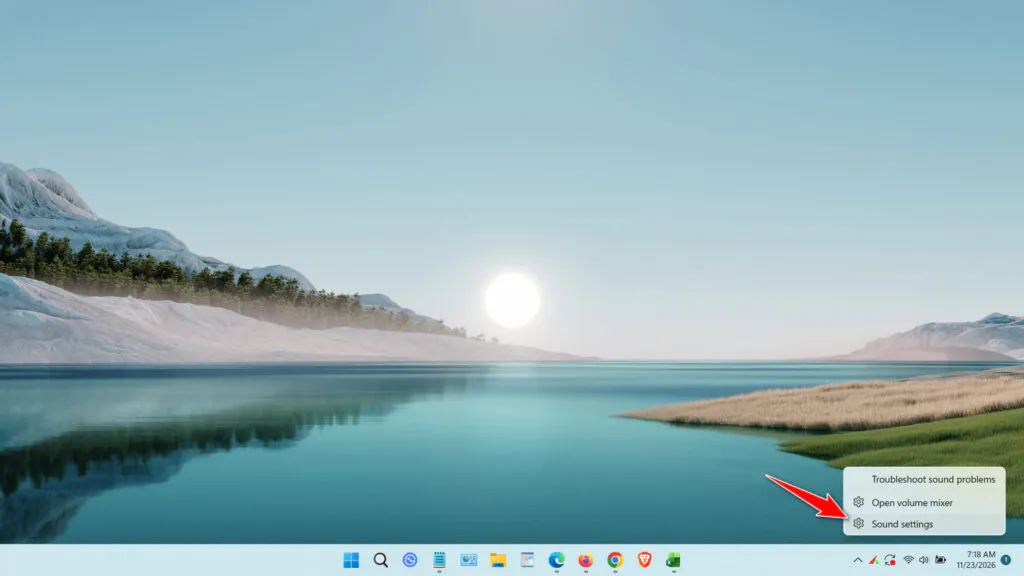
1. After successfully logging into Windows 11, you can right-click in the bottom right corner of the screen marked with the speaker icon, then after right-clicking, please select ‘Sound settings‘.
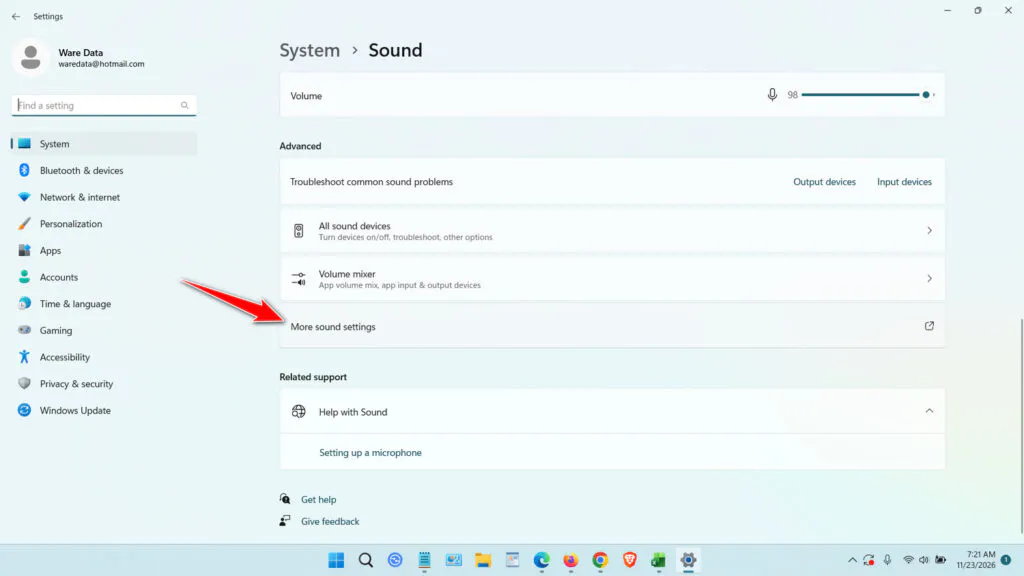
2. After that, scroll down and select Advanced > More sound settings.
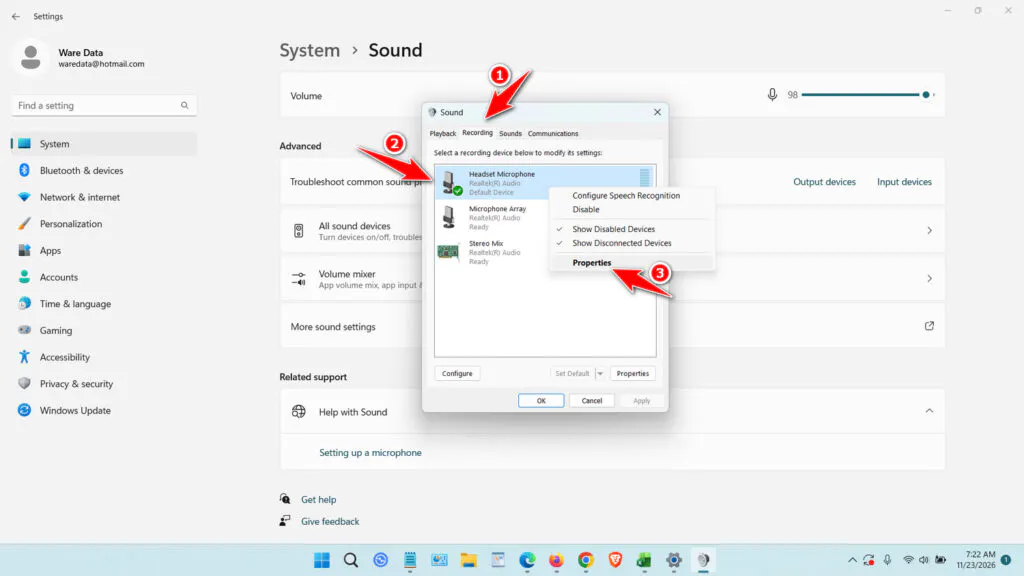
3. Select the Recording tab, then right-click the Microphone device you are using; for example, here we are using the Mic on the headset. Right-click that device, then select Properties.
4. Select the Levels tab, then increase the microphone audio as desired. The higher the value, the louder the microphone audio will be. Once done, please click OK.
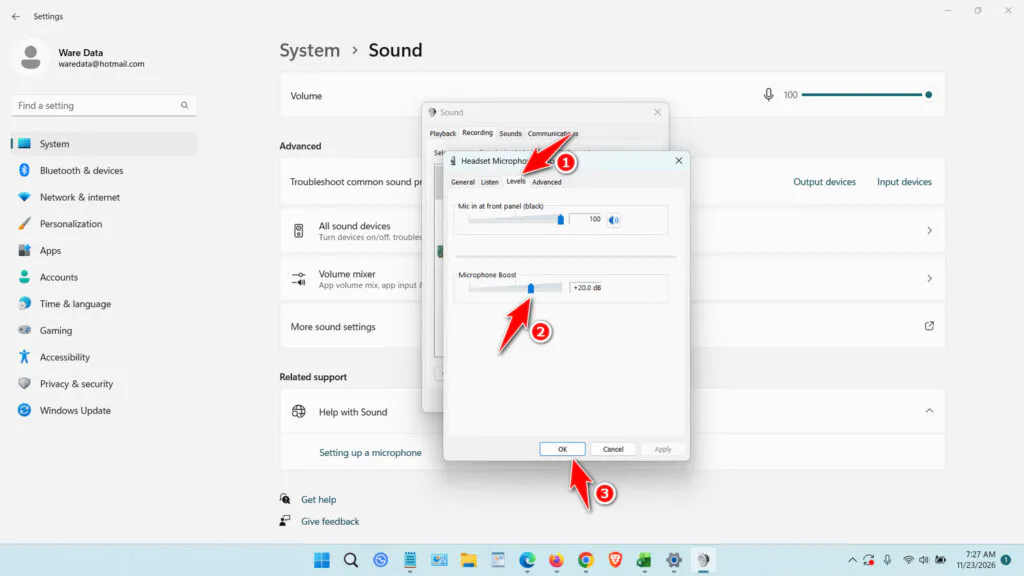
5. That’s a guide on how to improve the microphone audio on Windows 11; we recommend that you test the results to match the volume level you want.
When increasing the microphone audio on Windows 11, you must not choose the wrong microphone device you are using, because it will affect the sound produced and the impact of the audio increase.
Maybe you would like other interesting articles?