
Brother HL-L2360DW Printer Driver is a driver software package that must be installed on a Windows operating system so that the Brother HL-L2360DW Printer can work optimally and smoothly when in use. Additionally, the driver software is also useful for facilitating printer maintenance, as the driver software often includes built-in printer software used for operation and maintenance.
Below, we provide a complete Brother HL-L2360DW Printer Driver package that can be used on Windows operating systems, specifically Windows 11. In addition, we will provide you with a guide on how to install the driver software for the Brother HL-L2360DW Printer on Windows 11.
Table of Contents
- Why Software Drivers Are Important
- System Requirements
- How to Install Brother HL-L2360DW Printer Driver
- Download Brother HL-L2360DW Printer Driver
Why Software Drivers Are Important
Installing the software driver is very important because without the software driver, when you use the Brother HL-L2360DW Printer to print documents in popular applications like Microsoft Word, Excel, and PowerPoint, you will not be able to find the printer name, in this case “Brother HL-L2360DW,” and therefore you will not be able to use the printer.
In addition, the Brother HL-L2360DW Printer Driver is very useful if the printer experiences problems/errors. With the driver software installed, you will usually get guidance on how to handle the issues your printer is experiencing.
System Requirements
Here we only provide the Brother HL-L2360DW Printer Driver for Windows operating systems, so if you are using other operating systems, such as macOS or Linux, you can look for the driver software on other alternative sites. Here is a list of operating systems that are supported by the driver software we provide here.
Windows OS Supported
- Windows 11
- Windows 10
- Windows 8/8.1
- Windows 7
- Windows Server
How to Install Brother HL-L2360DW Printer Driver
1. Before you install the Brother HL-L2360DW Printer Driver, first make sure that your printer is turned on and connected to the computer where you will install the driver software.
2. After that, you can download the Brother HL-L2360DW Printer Driver via the link below this article.
3. After you download the software driver, please double-click to start the installation.
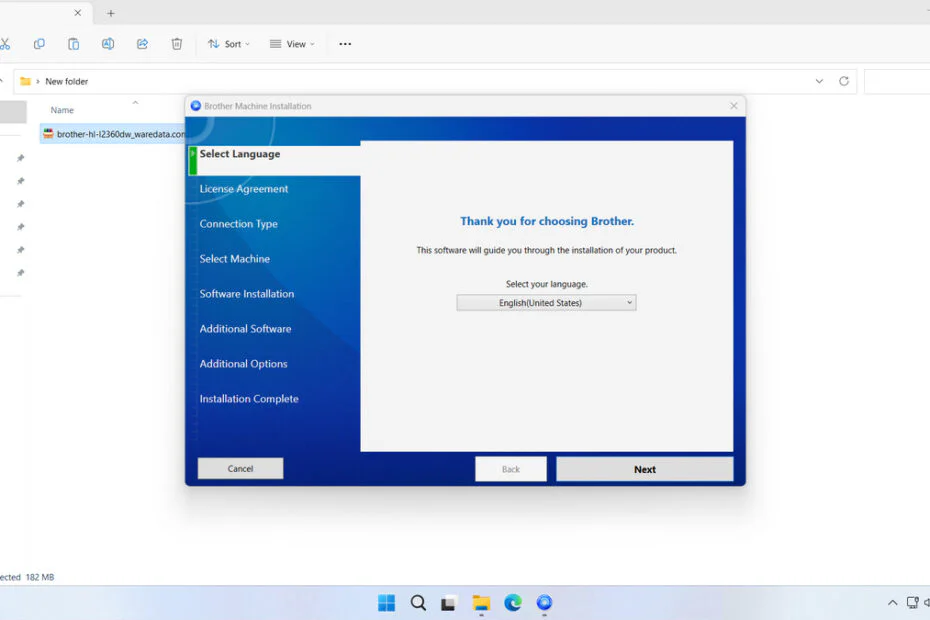
4. Select “Language” then click Next.
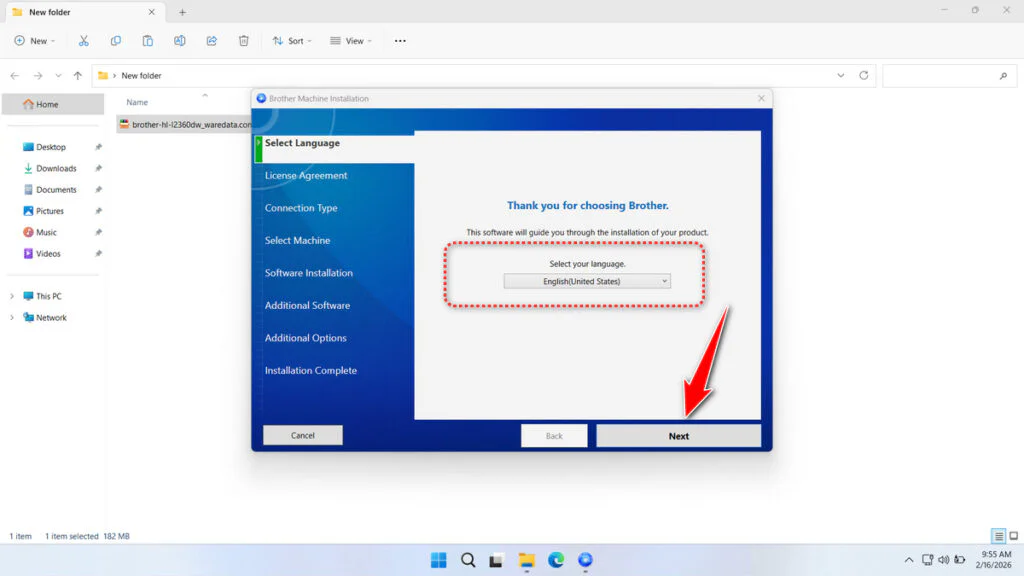
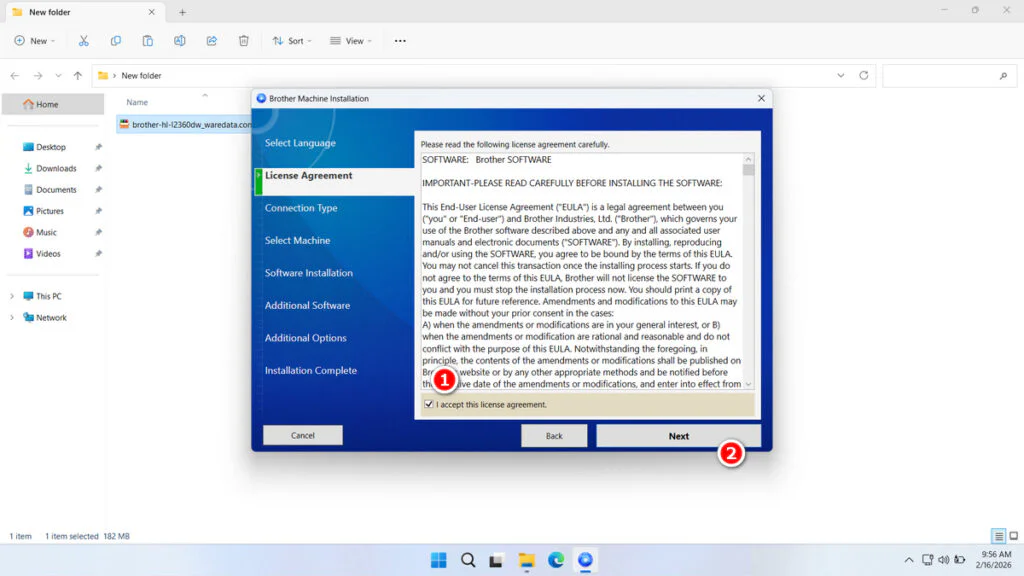
5. Check the license agreement, then click Next.
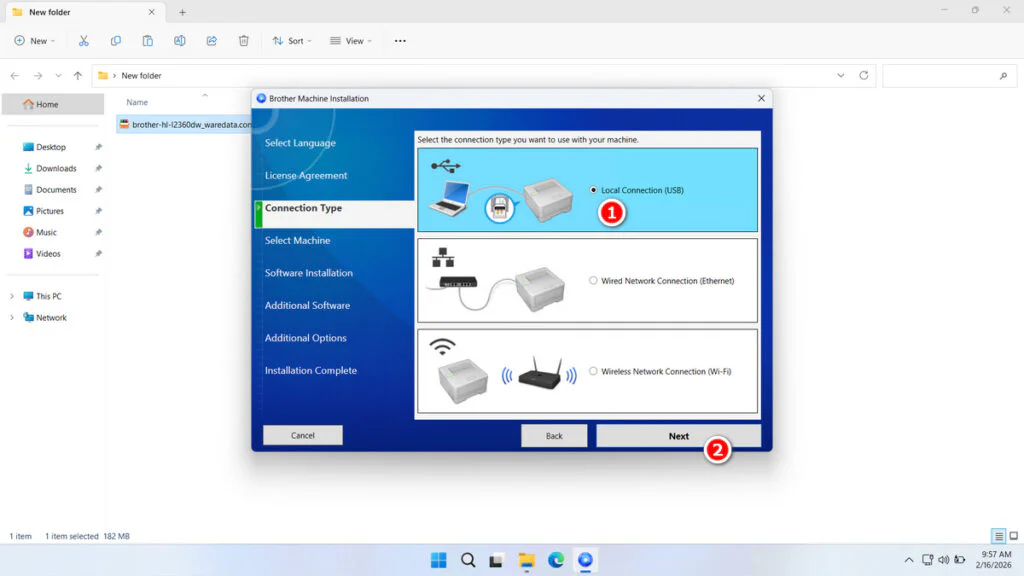
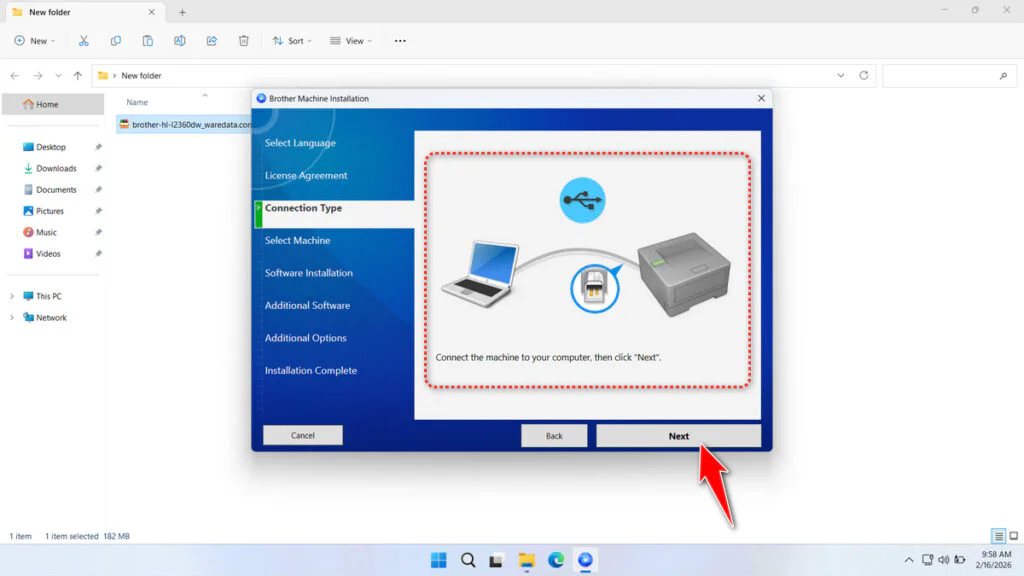
6. Select the type of connection for your printer to your computer, for example, a USB cable, then click Next.
7. After that, make sure the printer is turned on and connected, then you can continue installing the driver software until it’s complete. Once finished, you can use the printer as usual.
Download Brother HL-L2360DW Printer Driver
The Brother HL-L2360DW Printer Driver that we share here is the original driver software obtained from Brother’s official website, so we guarantee that the driver software you use here is safe and compatible with your Windows operating system.
For Windows operating system users who need the Brother HL-L2360DW Printer Driver, you can download the driver software through the following links.
File Size: 182MB
File Type: .EXE
OS Support: Windows 11/10/8/8.1/7/Server
Maybe you would like other interesting articles?