
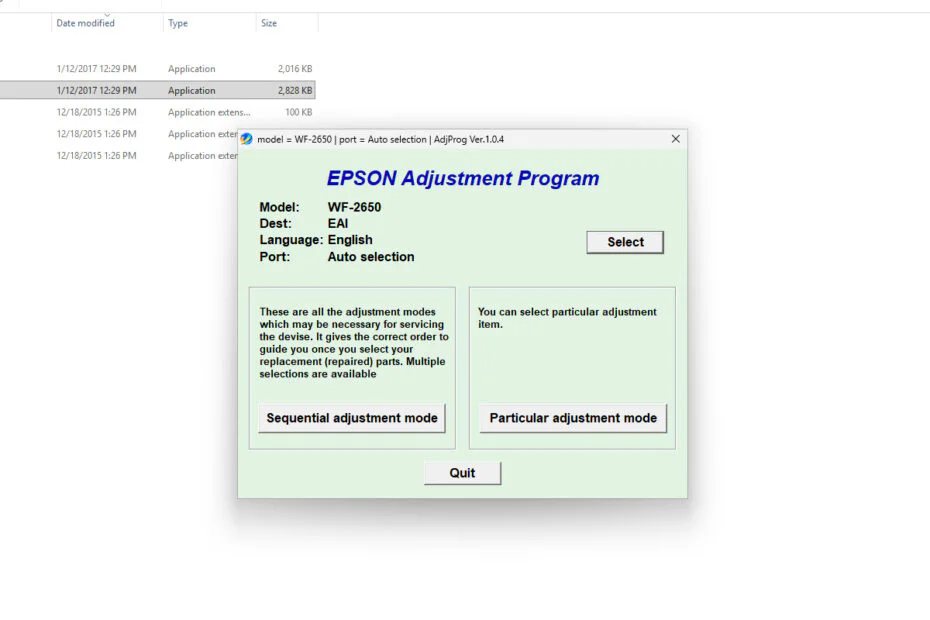
Epson WF2650 & WF2660 Resetter is an adjustment program software used to reset the Waste ink pad counter on Epson WorkForce 2650 and WorkForce 2660 printers. By using this adjustment program software, cleaning the Waste ink pad counter digitally will become easier.
Below, we will provide a guide on how to use the Epson WF2650 & WF2660 Resetter along with a download link where you can obtain this adjustment program software.
Table of Contents
How to Use Epson WF2650 & WF2660 Resetter
1. Before using this resetter software, first make sure that your Epson printer is turned on and connected to the PC using a printer cable. Then, you are also advised to temporarily disable antivirus and Windows Defender real-time protection and tamper protection.
2. After that, you can download the Epson WF2650 & WF2660 Resetter through the link below this article.
3. Extract the file you downloaded, then open the resetter software folder and run the file named “AdjProg.exe“.
4. When opening for the first time, you will be asked to enter the license serial, which you can obtain after entering the Hardware ID in the ‘Keygen.exe‘ file.
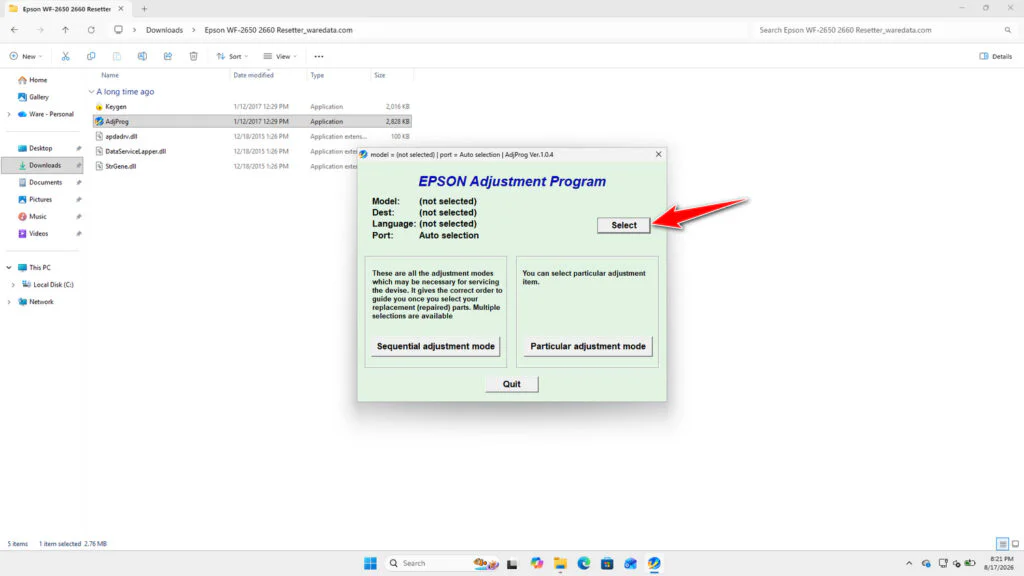
5. After the resetter software opens, please click the “SELECT” button.
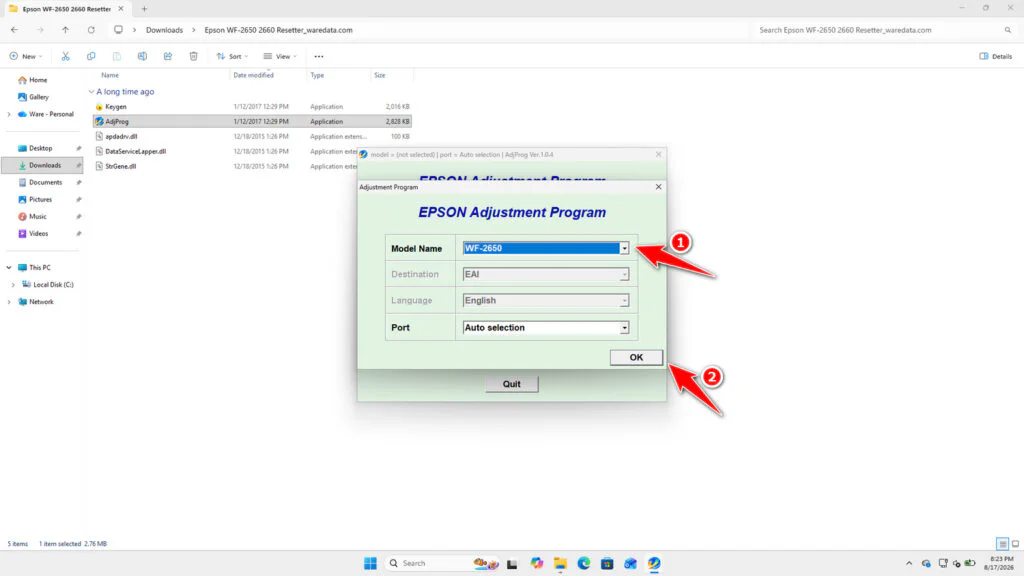
6. Select your printer model, WF-2650 or WF-2660. Then click OK.
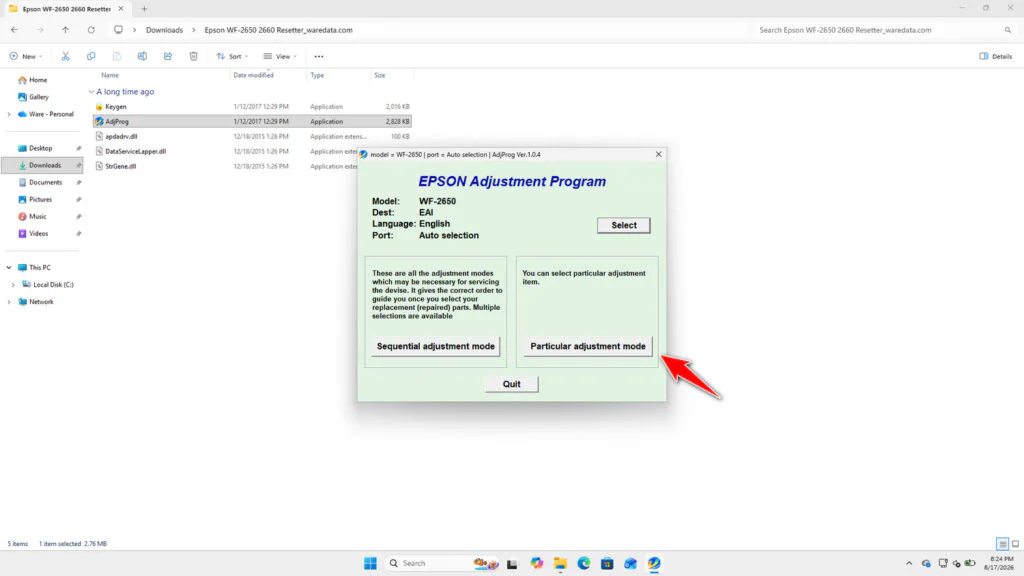
7. Click the ‘Particular adjustment mode‘ button.
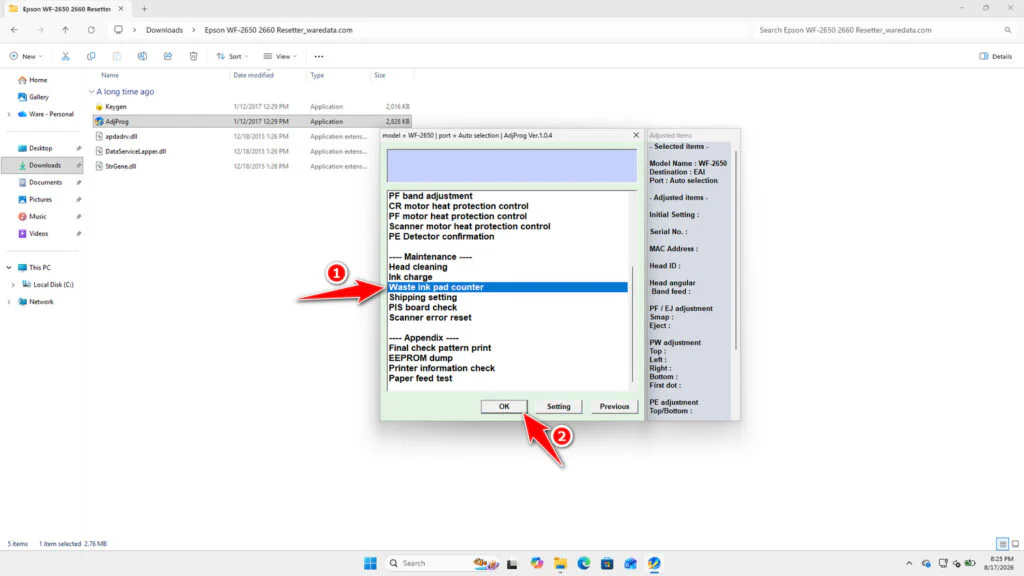
8. Select “Waste ink pad counter“, then click OK.
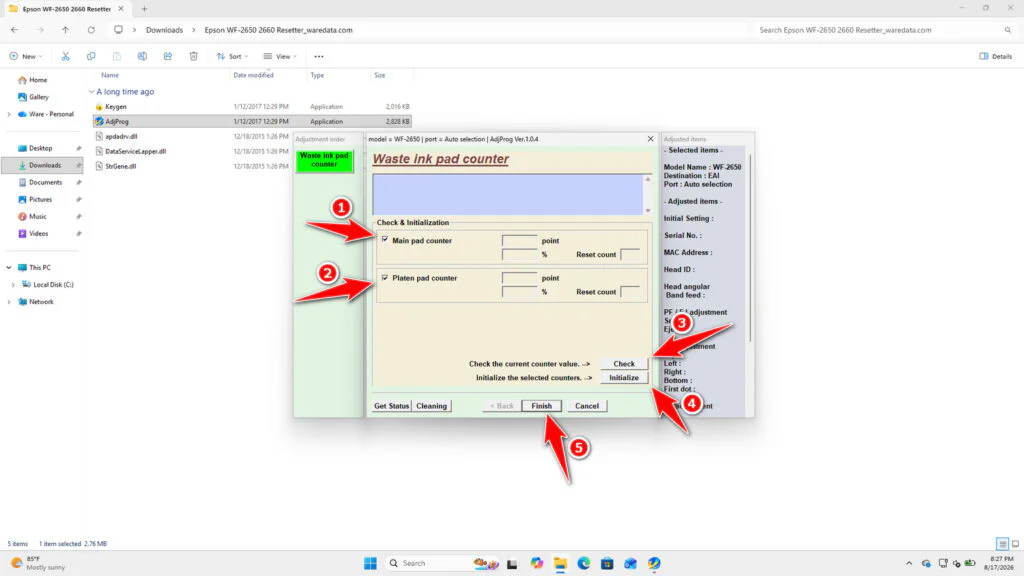
9. Tick ‘Main pad counter‘ and ‘Platen pad counter‘, then click Check, and then click Initialize. After finishing, click Finish and immediately turn off your printer. After that, the printer can be turned on and used again.
10. If an error occurs during the reset process, you can try moving the printer’s USB cable to another port on your computer. After that, you can try to reset your printer again.
Epson WF2650 & WF2660 Resetter Download
If you are in need of resetter software for Epson WorkForce 2650 and WorkForce 2660 printers, you can download the Epson WF2650 & WF2660 resetter through the link below.
File Size: 4.56MB
File Type: .ZIP
OS Support: Windows 10, 11, or higher
Maybe you would like other interesting articles?