

Have you ever experienced something annoying, like recording a video for a long time and then the audio turns out very noisy? Relax, you are definitely not alone, and many other people experience the same thing. Of course, what is needed is a quick and efficient solution for how to remove unwanted background noise from our video/audio. With today’s technological advancements, video editing software like Wondershare Filmora can be used to easily remove noise from video/audio with just a few clicks.
Wondershare Filmora, especially version 14.5.20, has a feature called “AI Voice Enhancer.” We have tested removing noise from various videos/audios, and the results are quite satisfying. In fact, it can be said that with precision and patience in editing, we can get videos with clear audio without background noise. How to do it? Please read the article until the end.
Table of Contents
Causes of Noisy Video
The main cause of our video recordings being noisy is due to the situation and conditions. First, the situation when we are recording may be crowded, or the conditions at the time include strong wind, rain, and so on. In addition, if you record using software, it is possible that the software we use isn’t very good, not supported by the hardware, especially the mic, etc.
Sounds considered noisy in a video can also occur when we are recording, and the microphone accidentally picks up our breathing or snoring, which ultimately makes the video seem less professional.
The problems we mentioned can be solved by editing our videos using Wondershare Filmora. How? Keep reading the article.
How to Remove Background Noise from Video Audio
1. As we explained earlier, here we are using Wondershare Filmora video editor, version 14.5.20. If you don’t have it yet, you can download it here. You will need a license if you don’t want your video to have a watermark.
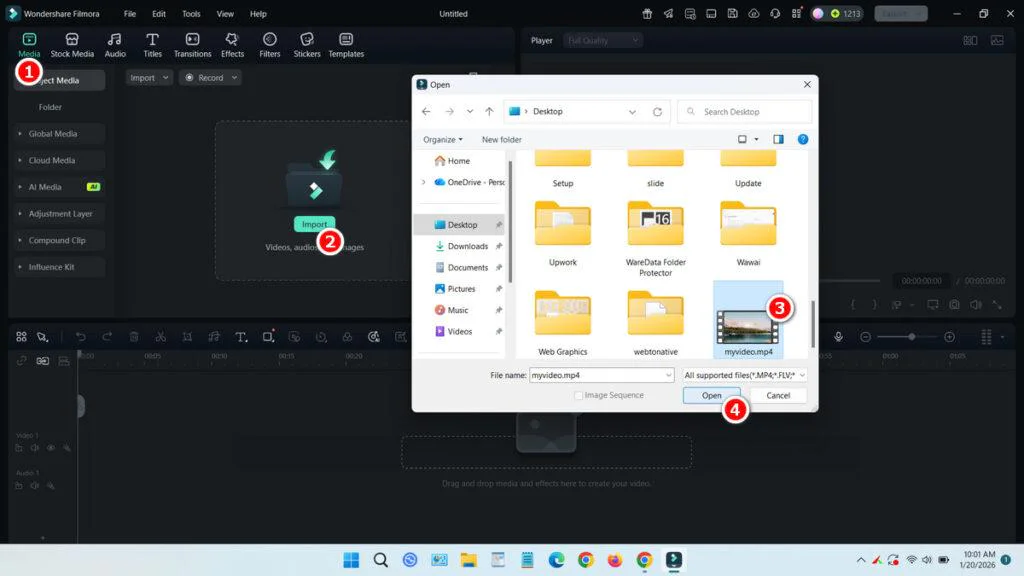
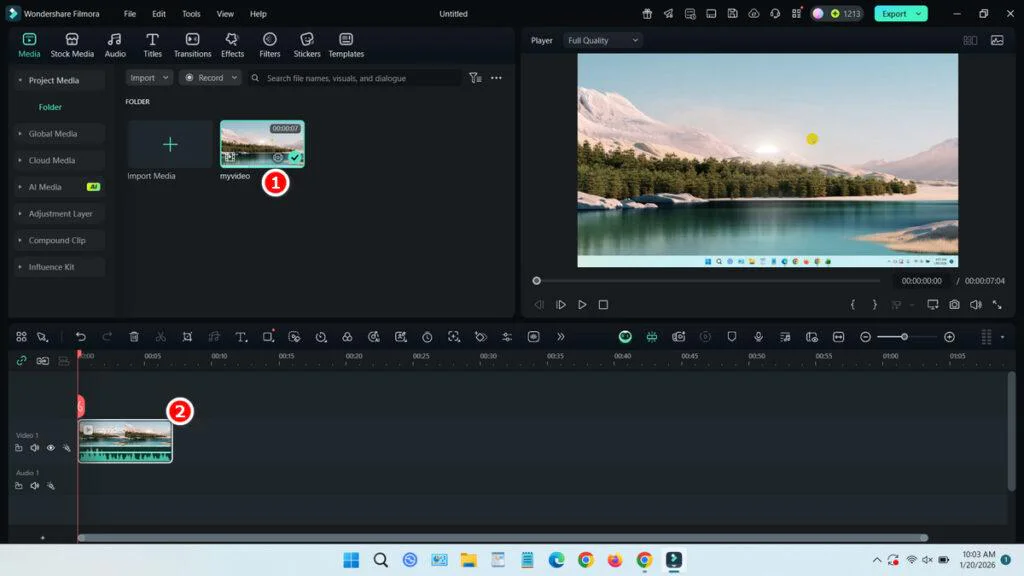
2. Open Wondershare Filmora video editor, add the video to the media, then drag it to the timeline.
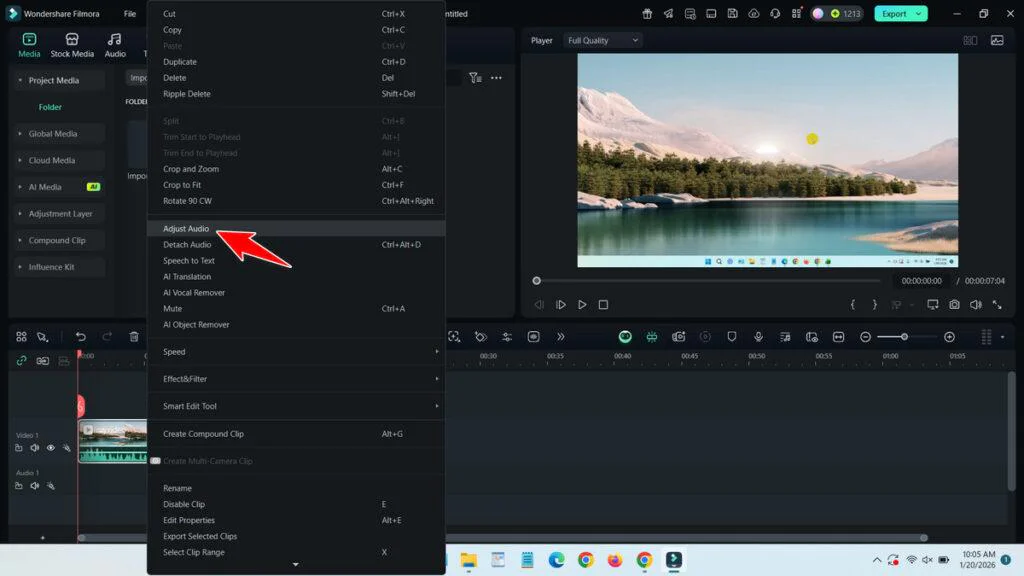
3. After that, right-click on the video in the timeline and select the Adjust Audio menu.
4. Scroll down and look for the ‘AI Voice Enhancer‘ menu.
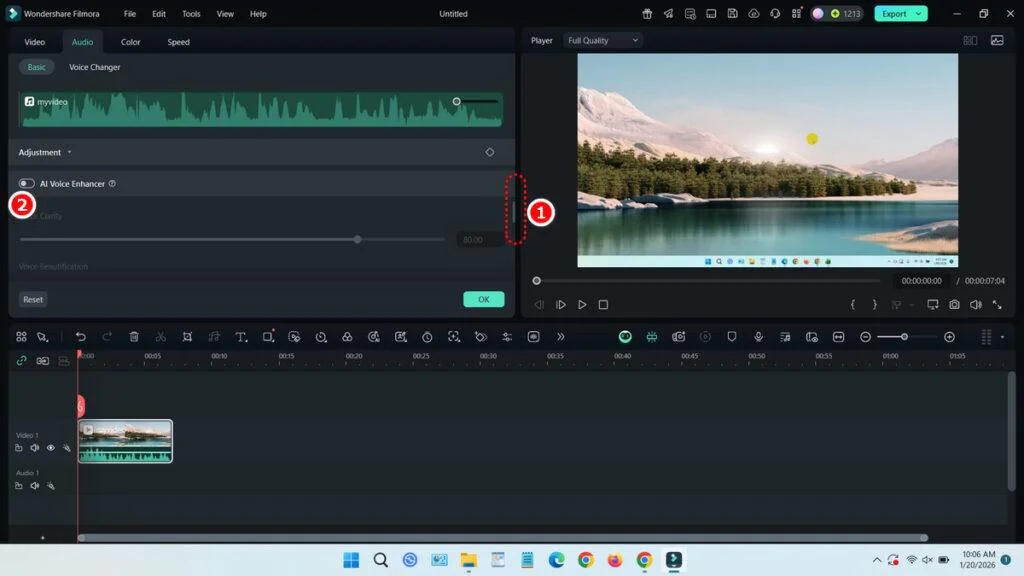
5. Enable the ‘AI Voice Enhancer‘ option, and then click OK.
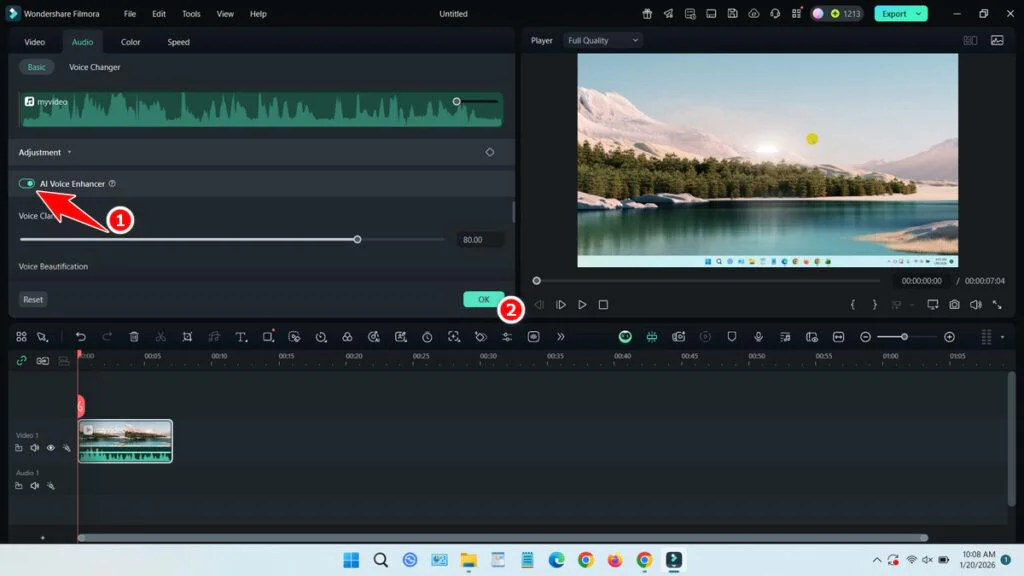
6. After that, listen to the audio from your video again. Is it clear enough or still lacking? If it’s lacking, there’s an easiest way: export the result first, then repeat this guide using the exported video. The result will be that your video’s audio will be much clearer, without having to bother with adjusting other settings.
7. If your video is still noisy even after editing it twice, try adjusting other settings that might affect your video. Please scroll down from the “AI Voice Enhancer” menu. There are several options there that you can adjust, such as Denoise, Wind Removal, Hum Removal, Hiss Removal, and so on.
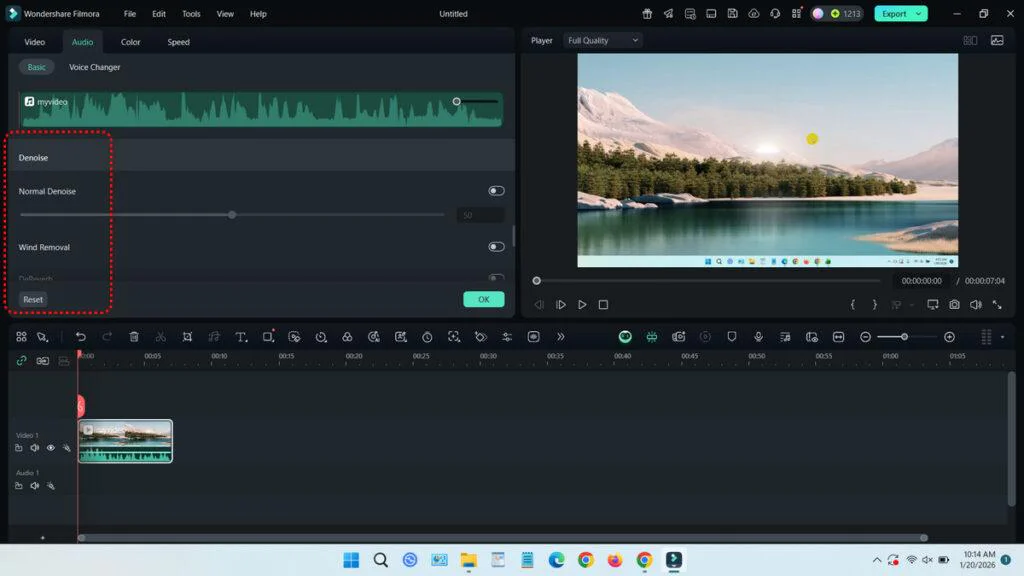
8. Before exporting, try playing your video from the timeline first to see the results.
Guide Video
If you are still confused about how to do it by reading the article, here we provide a tutorial video that you can watch on the following YouTube channel.
Maybe you would like other interesting articles?