
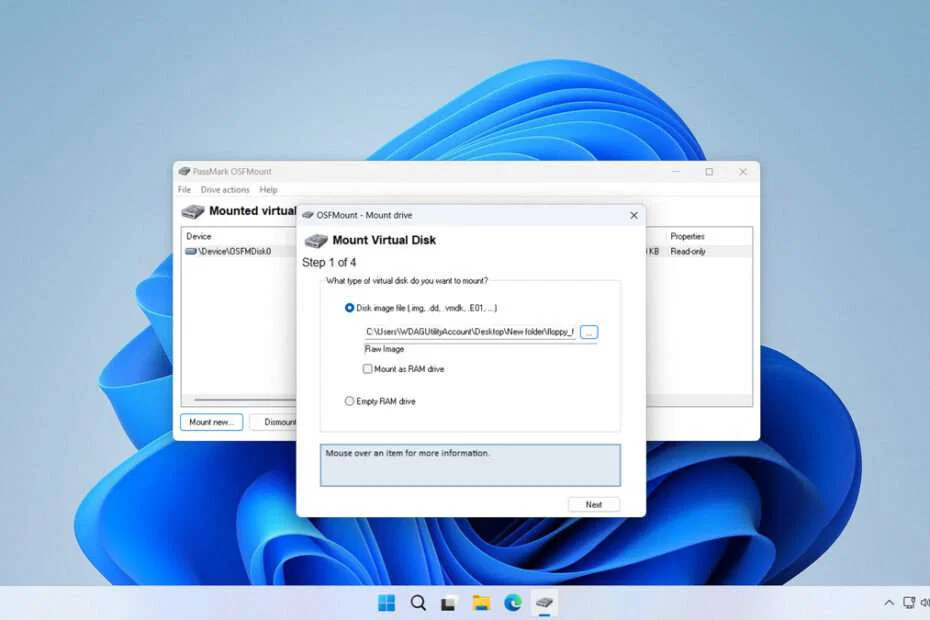
.dd files are image files (bit-by-bit copies) of a storage medium, such as a hard drive, SSD, USB, or memory card. These files are often also referred to as data dump backups. On Windows operating systems, we can’t open files with the .dd extension by default.
Below, we will provide you with a guide on how to easily open files with the .dd extension on Windows.
Table of Contents
- What is a .dd File
- Why Can’t Windows Open .dd Files?
- How to Open .dd File in Windows
- Download OSFMount Here
What is a .dd File
Files with the .dd extension are often created by forensic or backup tools, such as dd (Linux/Unix command), FTK Imager, OSFClone / OSFMount, and Guymager. A .dd file is not an ordinary file; its contents are a raw copy of all sectors of the drive, including Files & folders, deleted files, the boot sector, the partition table, Free space, and hidden sectors. Therefore, the size of a .dd file is usually exactly the same as the size of the source drive it was created from.
Why Can’t Windows Open .dd Files?
.dd files are raw disk images that come from the Linux/forensics world, so Windows does not have a built-in program to open them. A .dd file contains a sector-by-sector copy of a drive without any additional metadata. Therefore, Windows Explorer and Disk Management do not know:
- Where the partitions start
- What file system is used
- How to interpret the raw sectors
Because of this, Windows can’t mount or open .dd files without special tools.
How to Open .dd File in Windows
With a free tool called OSFMount, we will be able to easily open .dd files on Windows. Not only that, this application also supports other file extensions such as .vhd, .vmdk, and so on.
For a guide on opening .dd files on Windows using OSFMount, you can follow the guide below.
1. Download OSFMount through the link below this article, then after that, install it by double-clicking the file and following the installation guide until it is complete.
2. After that, run or open the installed OFSMount to start the process of opening the .dd file.
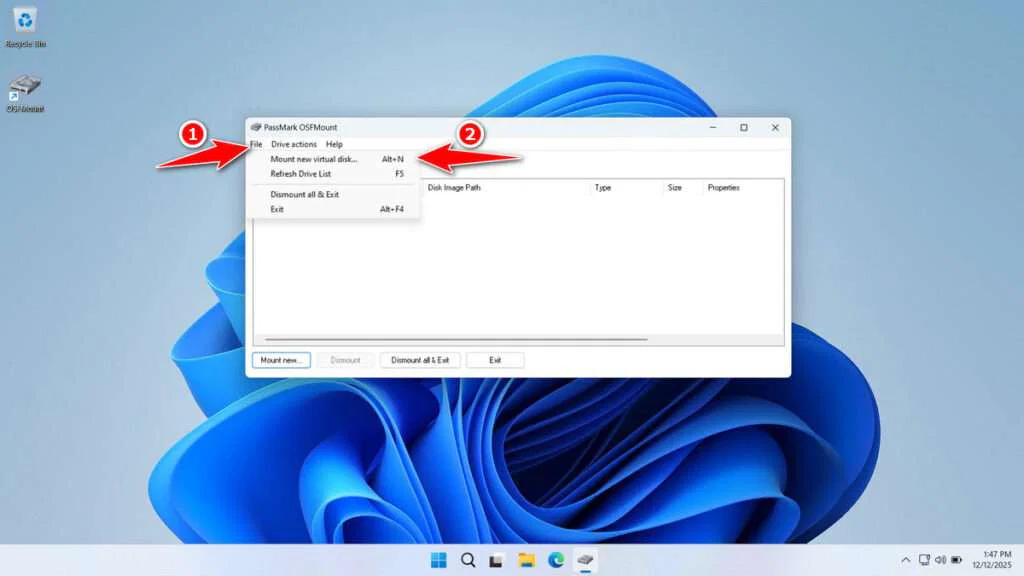
3. Select the File menu, then choose “Mount new virtual disk“.
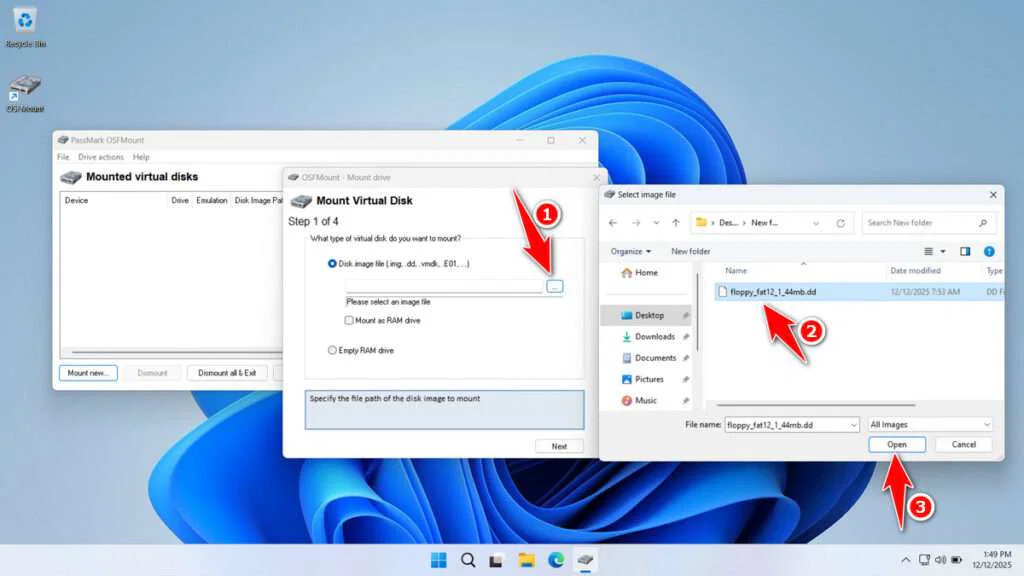
4. Select your .dd file location, then click Open.
5. After that, click Next to continue.
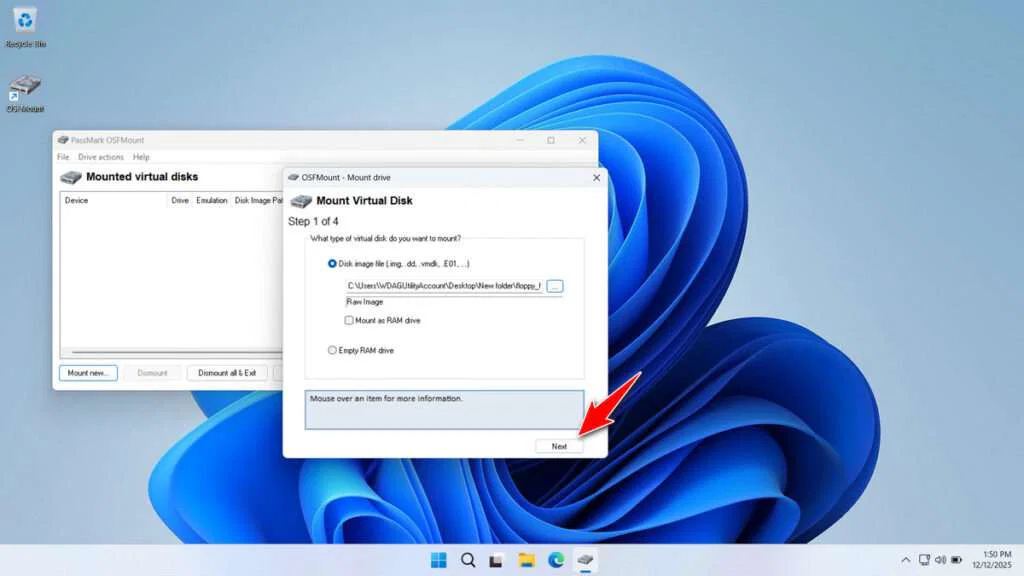
6. Click Next again.
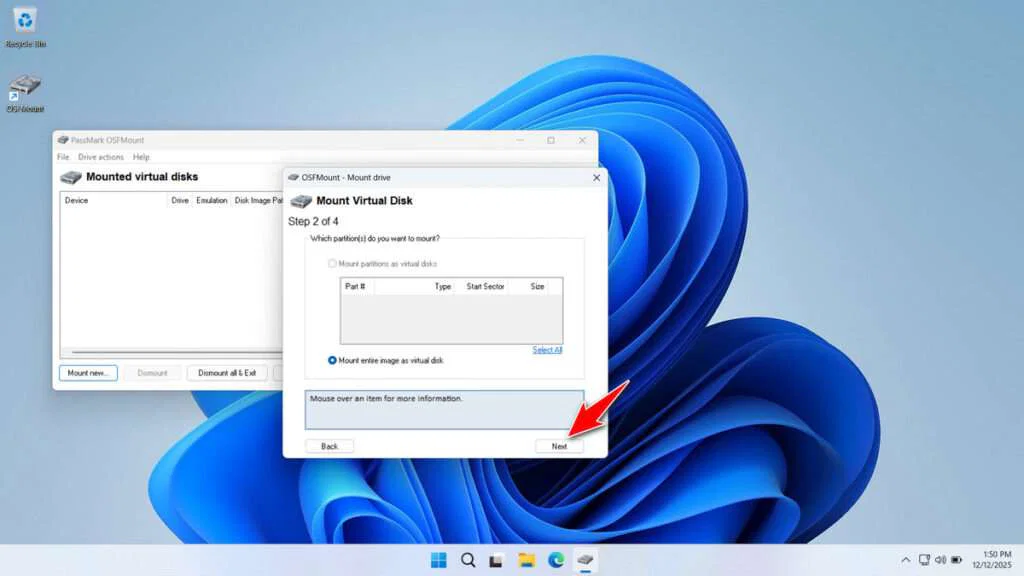
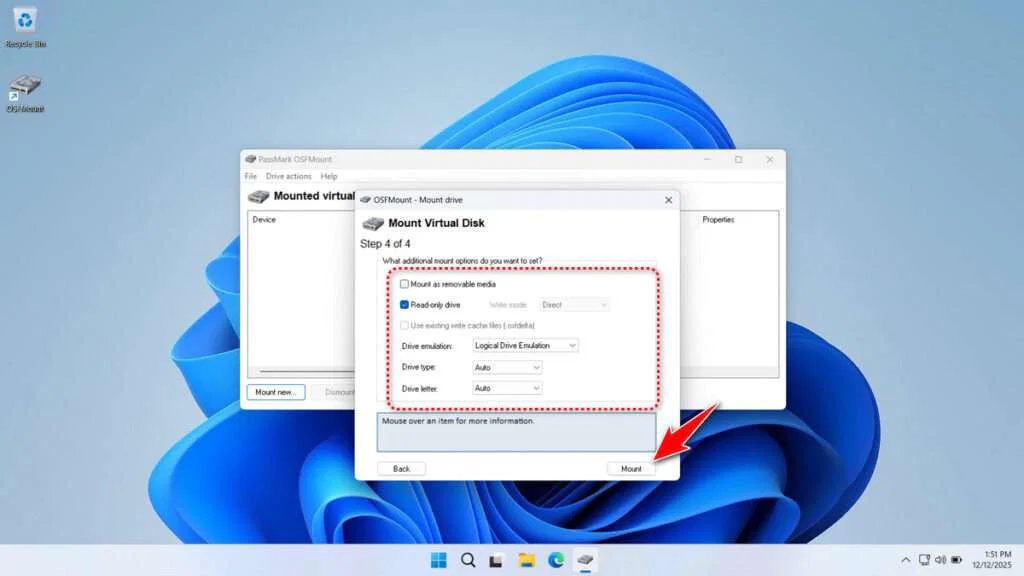
7. If you’re confused here, just leave the default settings, then click Mount.
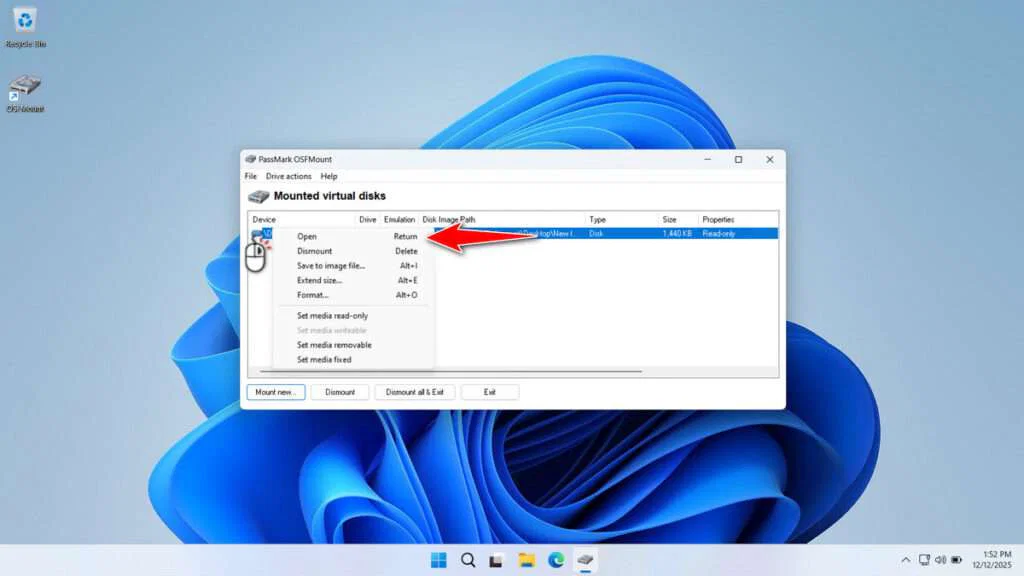
8. Right-click on your .dd file list, then click Open.
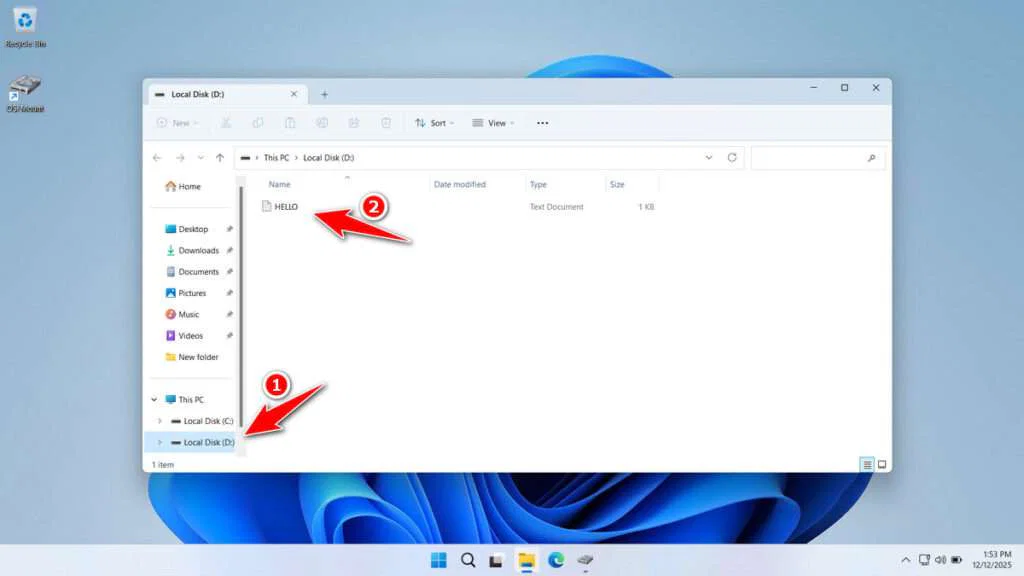
9. After successfully mounting, you should see a new drive in your Windows, where you can view the contents of the .dd file you have.
Guide in video format
If you are still confused about how to open a .dd file on Windows, you can watch the following tutorial video.
Download OSFMount Here
If you have a backup file with the .dd extension and can’t open it, OFSMount is one of the software programs you can try. It’s lightweight, simple, but powerful, and might be very useful for you.
For those of you who need OSFMount for Windows, you can download it through the following server links.
File Size: 15.2MB
File Type: .EXE
OS Support: Windows 11/10/8/7/Server
Maybe you would like other interesting articles?