
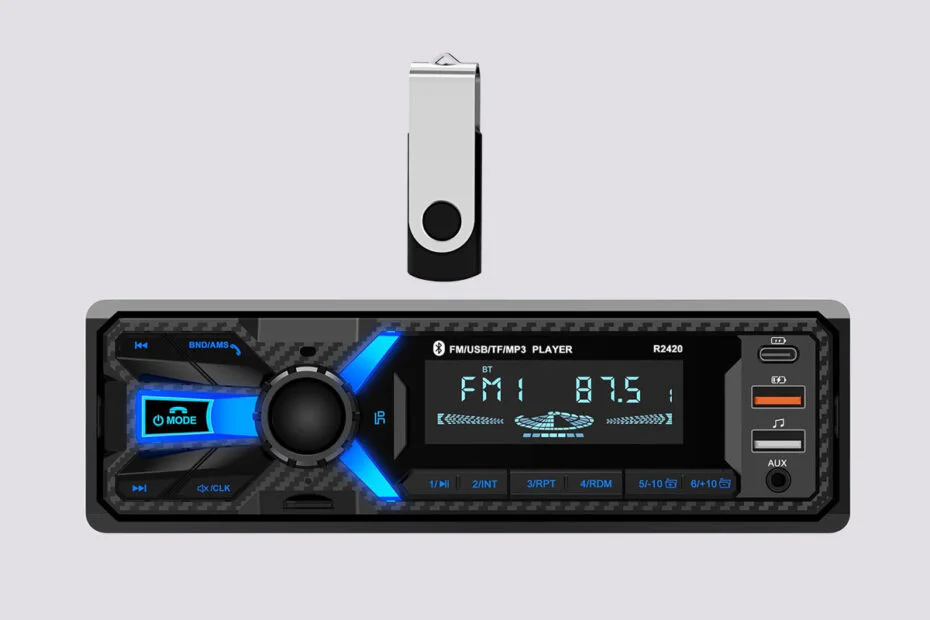
If your car stereo or head unit suddenly stops reading your USB drive, you’re not alone. USB playback issues are one of the most common problems drivers face, whether it’s music files not showing up, a warning appearing on the car stereo screen, or the system refusing to recognize the device at all. The good news is that most of these problems can be fixed quickly without replacing your stereo or buying new hardware.
In this guide, we’ll walk you through the most common reasons why USB playback fails on car stereos and head units, from unsupported file systems and compatibility issues. Whether you’re using a factory-installed system or an aftermarket head unit, these simple troubleshooting tips can help get your music playing again in minutes.
Table of Contents
- Why USB Is Not Detected/Recognized
- Formatting USB to Systems Recognizable by Car Stereo/Head Unit
- Problem Solving
Why USB Is Not Detected/Recognized
One of the biggest reasons a USB drive won’t work in a car stereo or head unit is the file system format. Many car stereos only support FAT32, especially older models. If the USB drive is formatted as NTFS or exFAT, the system may fail to detect it or won’t play any music files.
For the best compatibility, it’s usually recommended to format the USB drive to FAT32 before copying music onto it.
Another important thing to know is that a USB drive for a car stereo doesn’t need to be “bootable.” Some of you may accidentally create a bootable USB drive using tools like the Windows Media Creation Tool or format it using the built-in Windows application, which is meant for installing operating systems, not for playing music in a car.
A car head unit only needs:
- A normal USB flash drive
- Formatted as FAT32
- Music files copied normally onto the drive
No boot files, partitions, or special setup are required. Just format the USB correctly and drag/copy your music files onto it.
Formatting USB to Systems Recognizable by Car Stereo/Head Unit
1. We have conducted experiments and research to format a USB so that it is detected by a car stereo or head unit, using Rufus.
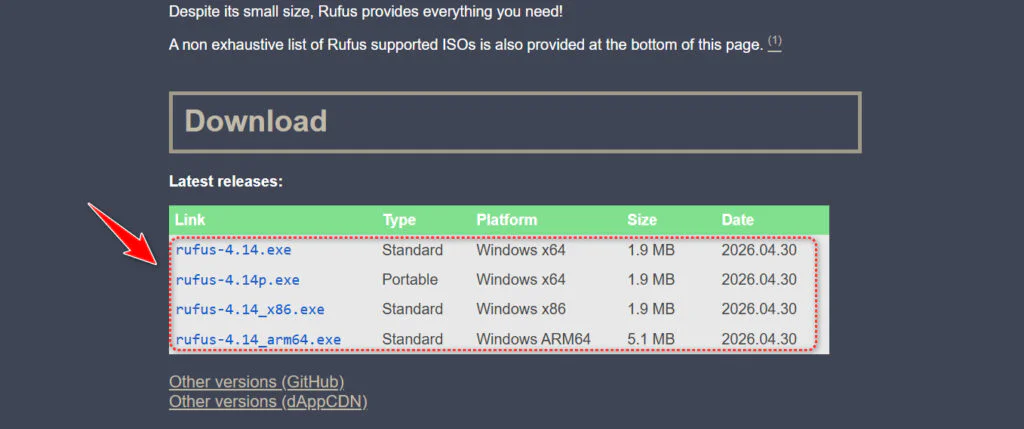
2. First, download Rufus here, then download the Rufus software. You can download the installer version or the portable version; it’s up to you. See the following picture.
3. After you download it, please install and run Rufus. Since I am using the portable version, I don’t need to install it, just double-click it.
4. After it opens, pay attention to the following settings before clicking the Format button. There are 4 points that you need to pay attention to, among them:
#Boot Selection = Non bootable
#Partition scheme = MBR
#Target system = BIOS or UEFI
#File system = FAT32 (Default)
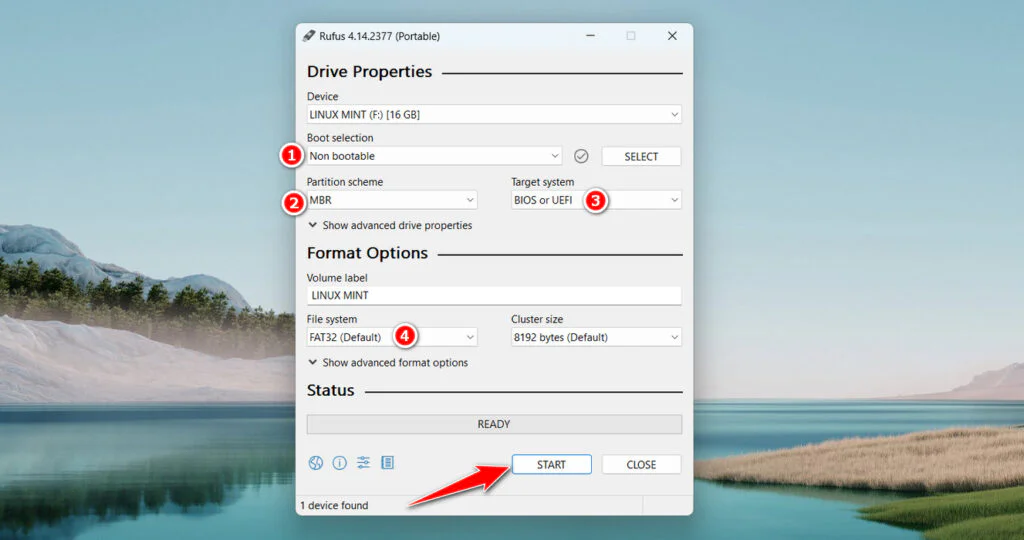
5. After you make the settings, you can click ‘Start‘ to begin formatting.
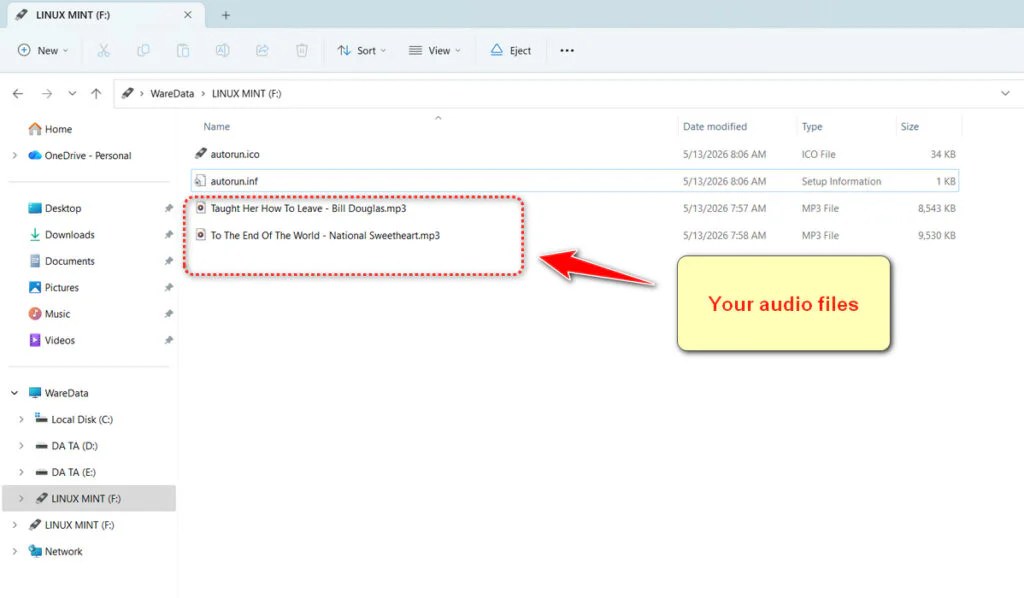
6. After the format is complete, you can copy your audio, MP3, or music files to the USB. Do not delete the settings files from Rufus (usually there are 2: “autorun.inf” and “autorun.ico“). See image below.
7. After that, eject your USB, and try playing it in the car stereo or head unit in your car.
Problem Solving
If your car stereo and head unit already recognize the USB drive but the audio files cannot be played, it is possible that your audio files are not supported by your car stereo or head unit. Try using other audio files.
If you are still confused about how to format a USB drive so that it is recognized by a car stereo & head unit, you can follow the guide in the form of a video that we provide below.
Maybe you would like other interesting articles?