
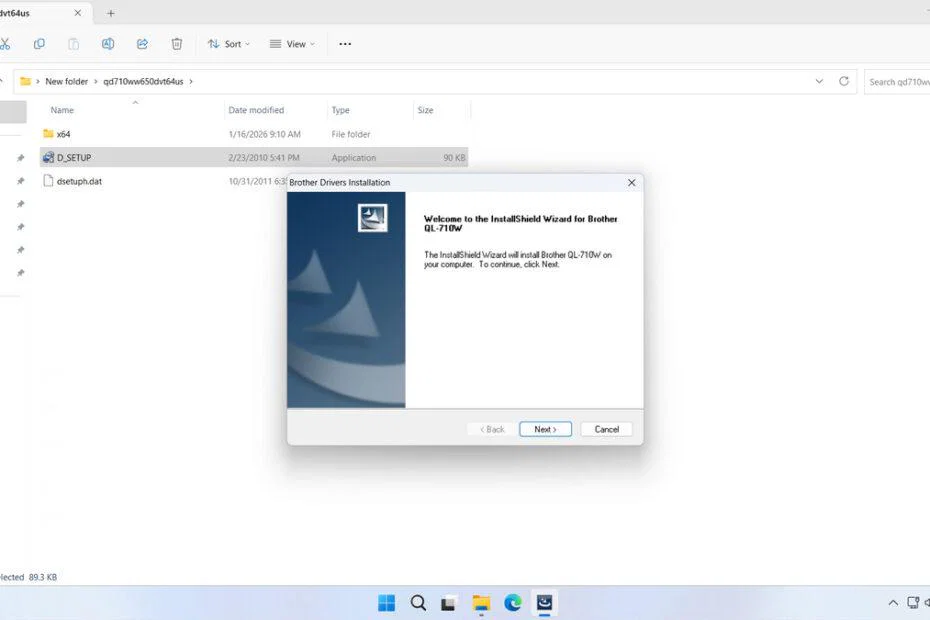
The Brother QL 710w Printer Driver is a software driver package that must be installed for the Brother QL 710w Printer to function properly. As we know, the Brother QL 710w printer is a type of printer used for printing labels, so it requires special handling, all of which can only be obtained from the appropriate driver software.
Below, we provide a download link for the Brother QL 710w Printer Driver for Windows and macOS, and we will also provide a guide on how to install the driver software on Windows 11.
Table of Contents
- Why Software Drivers Are Important
- System Requirements
- How to Install Brother QL 710w Printer Driver
- Download Brother QL 710w Printer Driver Here
Why Software Drivers Are Important
Installing software drivers is very important, especially for printers used to print labels, such as the Brother QL 710w Printer Driver, as the role of the software driver here is crucial in producing good print quality.
In addition, the driver software will also ensure that if the Brother QL 710w Printer encounters issues, solutions for handling them will be displayed. This is why driver software is very necessary.
System Requirements
Below, we only provide the Brother QL 710w Printer Driver for Windows and macOS, so if you are not using either of these operating systems, you can look for the driver software on other sites. Here is the list of Windows OS and macOS that are supported by the driver software we share here.
Windows OS Supported
- Windows 11
- Windows 10 (64-bit)
- Windows 8/8.1 (64-bit)
- Windows 7 (64-bit)
- Windows Server
macOS Supported
- macOS 26
- macOS 15
- macOS 14
- macOS 13
- macOS 12
How to Install Brother QL 710w Printer Driver
1. Before installing the driver software for the Brother QL 710w Printer, make sure that the printer is turned on and connected to the computer/laptop where the driver software will be installed. Then you can download the driver software through the link provided below this article.
2. After downloading the software driver, please double-click to start the installation.
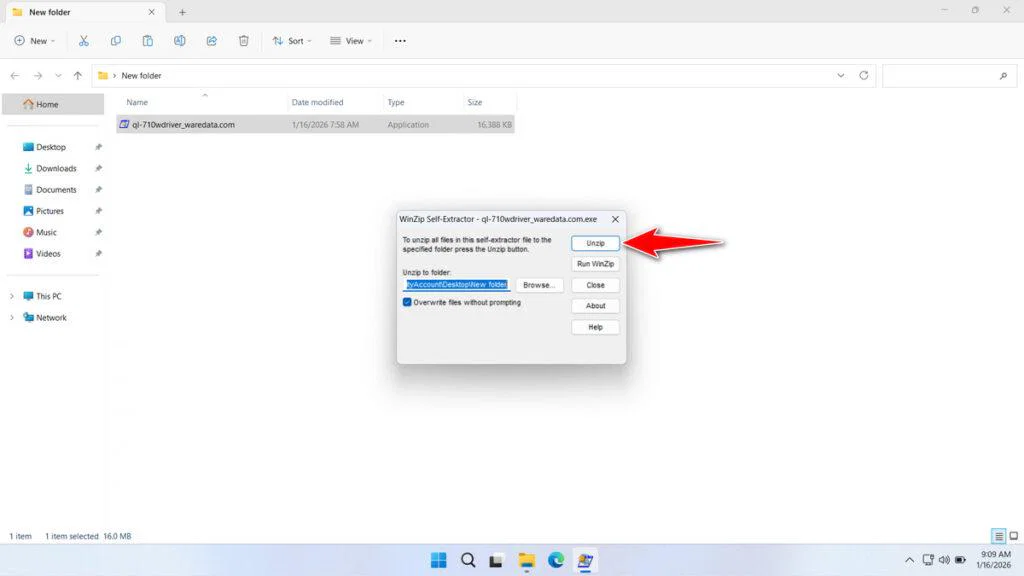
3. Click Unzip to start extracting.
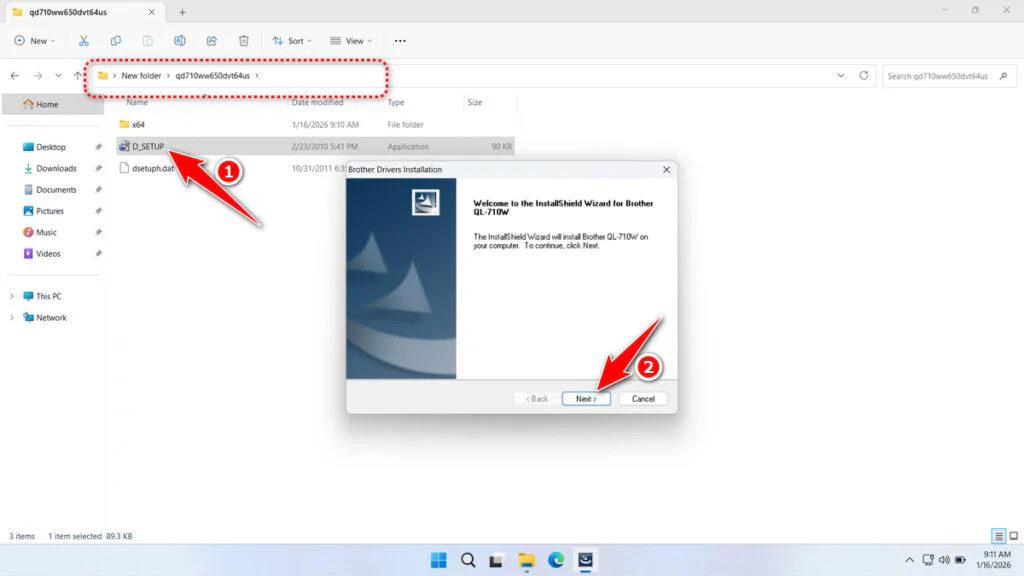
4. Open the extracted folder, then double-click on the “D_SETUP” file to continue the installation. After that, click Next.
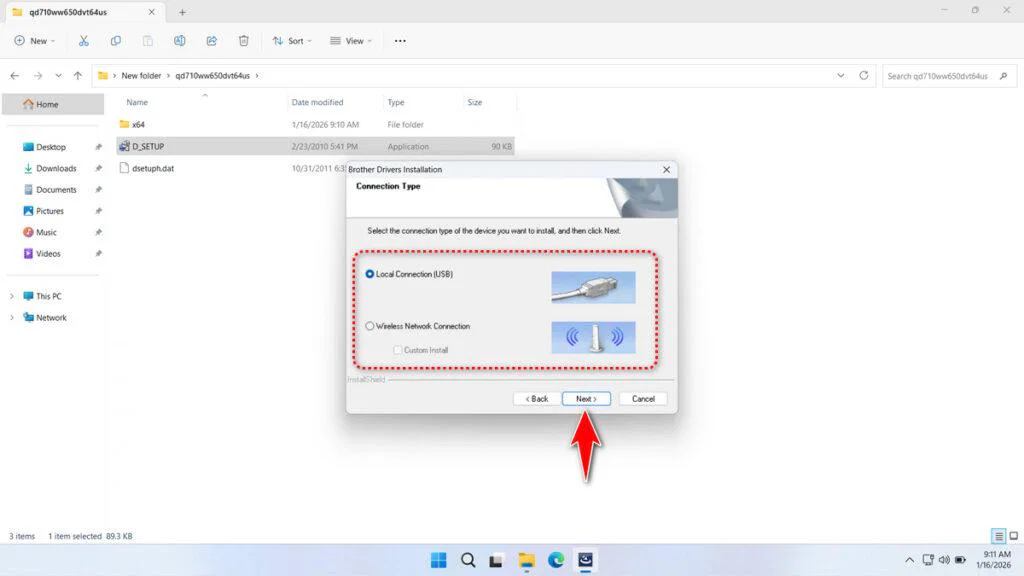
5. Select the type of connection and then click Next.
6. Click Next again to continue.
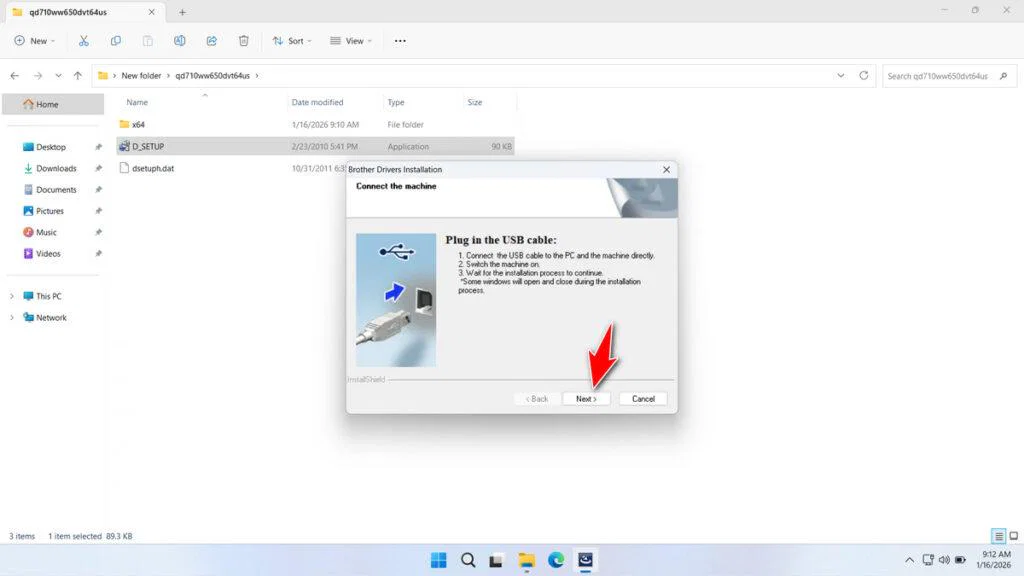
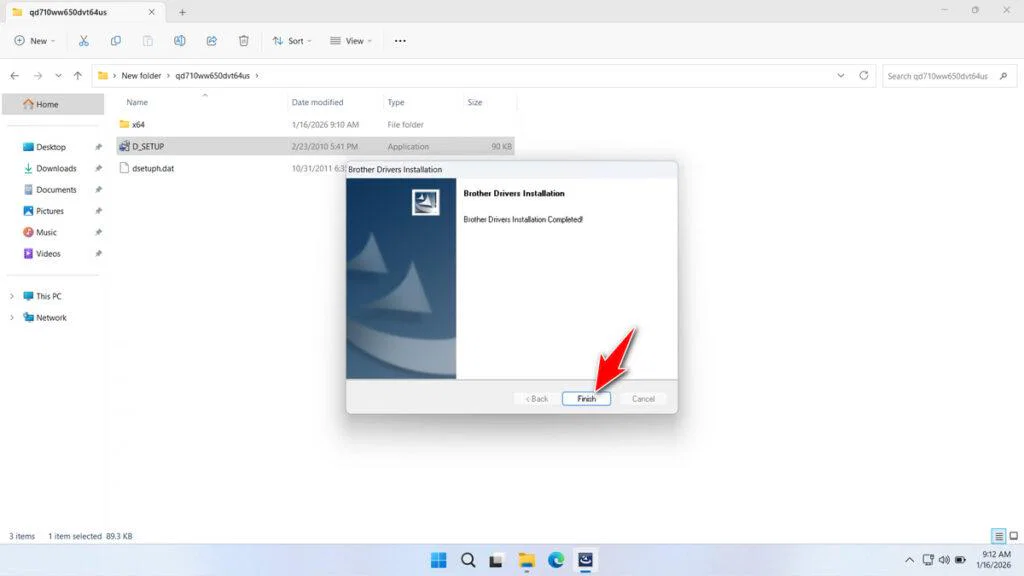
7. Click Finish once the installation is complete.
Download Brother QL 710w Printer Driver Here
The Brother QL-710W printer driver we are sharing here is the original driver software that we obtained through the official Brother website, so it is safe for you to install and use on your Windows or macOS operating system.
For Windows and macOS users who need a download link for the Brother QL 710w Printer Driver, you can download it through several links we provide below.
File Size: 16MB
File Type: .EXE
OS Support: Windows 11/10/8/7/Server (64-bit)
Maybe you would like other interesting articles?