
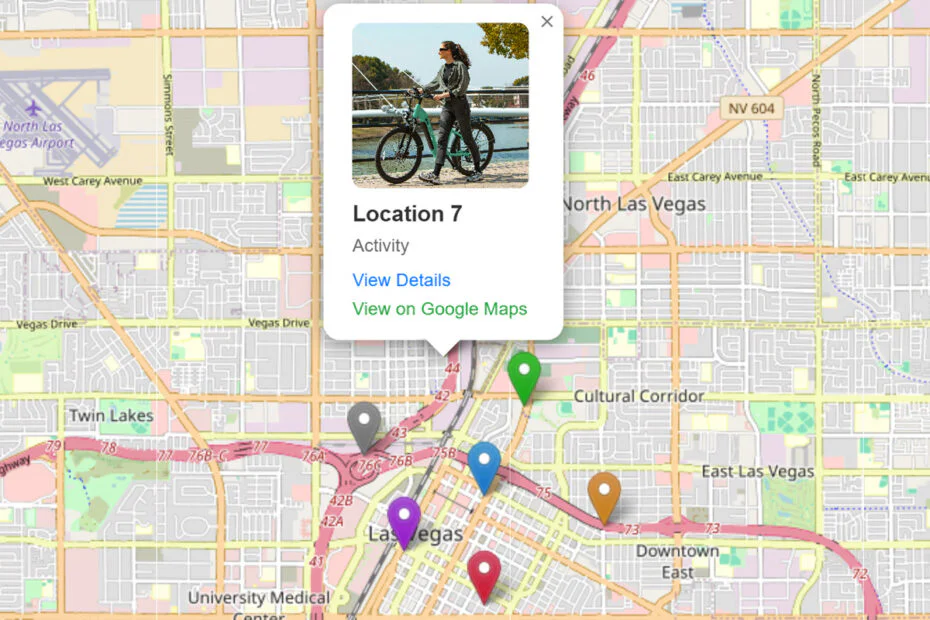
Adding an interactive map to your website is a great way to showcase locations, guides, or directories. In this tutorial, you’ll learn how to install and use a custom Leaflet.js map script inside WordPress, no heavy plugins required.
Table of Contents
- What You’ll Be Building
- Step 1: Prepare the Script
- Step 2: Add Map to a Page (Gutenberg Editor)
- Step 3: Customize Your Locations
- Step 4: Adjust Map Center
- Step 5: Customize Your Marker
- Step 6: Make It Mobile-Friendly
- Optional Enhancements
- Demo
What You’ll Be Building
You’ll create a map that:
- Displays multiple locations (Location 1, Location 2, etc.)
- Uses custom colored markers
- Shows a pop-up with image, category, and links
- Loads fast (no plugin overhead)
Step 1: Prepare the Script
Make sure you already have your full map script (like the one I gave you). It includes:
- Leaflet CSS & JS
- Map container
- Marker data
Here is the script:
<link rel="stylesheet" href="https://unpkg.com/leaflet/dist/leaflet.css"/>
<div id="map" style="height:500px; width:80%; margin:auto; border-radius:12px;"></div>
<script src="https://unpkg.com/leaflet/dist/leaflet.js"></script>
<script>
// Init map (Las Vegas, Nevada)
var map = L.map('map').setView([36.1699, -115.1398], 13);
// Base map
L.tileLayer('https://{s}.tile.openstreetmap.org/{z}/{x}/{y}.png', {
attribution: '© OpenStreetMap contributors'
}).addTo(map);
// ICON per category
var icons = {
"Attraction": new L.Icon({
iconUrl: "https://raw.githubusercontent.com/pointhi/leaflet-color-markers/master/img/marker-icon-blue.png",
shadowUrl: "https://unpkg.com/leaflet@1.9.4/dist/images/marker-shadow.png",
iconSize: [25, 41],
iconAnchor: [12, 41]
}),
"Marina": new L.Icon({
iconUrl: "https://raw.githubusercontent.com/pointhi/leaflet-color-markers/master/img/marker-icon-violet.png",
shadowUrl: "https://unpkg.com/leaflet@1.9.4/dist/images/marker-shadow.png",
iconSize: [25, 41],
iconAnchor: [12, 41]
}),
"Outdoor": new L.Icon({
iconUrl: "https://raw.githubusercontent.com/pointhi/leaflet-color-markers/master/img/marker-icon-green.png",
shadowUrl: "https://unpkg.com/leaflet@1.9.4/dist/images/marker-shadow.png",
iconSize: [25, 41],
iconAnchor: [12, 41]
}),
"Art": new L.Icon({
iconUrl: "https://raw.githubusercontent.com/pointhi/leaflet-color-markers/master/img/marker-icon-orange.png",
shadowUrl: "https://unpkg.com/leaflet@1.9.4/dist/images/marker-shadow.png",
iconSize: [25, 41],
iconAnchor: [12, 41]
}),
"History": new L.Icon({
iconUrl: "https://raw.githubusercontent.com/pointhi/leaflet-color-markers/master/img/marker-icon-red.png",
shadowUrl: "https://unpkg.com/leaflet@1.9.4/dist/images/marker-shadow.png",
iconSize: [25, 41],
iconAnchor: [12, 41]
}),
"Transport": new L.Icon({
iconUrl: "https://raw.githubusercontent.com/pointhi/leaflet-color-markers/master/img/marker-icon-grey.png",
shadowUrl: "https://unpkg.com/leaflet@1.9.4/dist/images/marker-shadow.png",
iconSize: [25, 41],
iconAnchor: [12, 41]
}),
"Activity": new L.Icon({
iconUrl: "https://raw.githubusercontent.com/pointhi/leaflet-color-markers/master/img/marker-icon-yellow.png",
shadowUrl: "https://unpkg.com/leaflet@1.9.4/dist/images/marker-shadow.png",
iconSize: [25, 41],
iconAnchor: [12, 41]
})
};
// Data location (Las Vegas area)
var places = [
  {
    name: "Location 1",
    lat: 36.1710,
    lng: -115.1400,
    image: "https://images.unsplash.com/photo-1507525428034-b723cf961d3e",
    link: "#",
    gmaps: "#",
    category: "Attraction"
},
{
name: "Location 2",
lat: 36.1655,
lng: -115.1500,
image: "https://images.unsplash.com/photo-1569263979104-865ab7cd8d13",
link: "#",
gmaps: "#",
category: "Marina"
},
{
name: "Location 3",
lat: 36.1800,
lng: -115.1350,
image: "https://images.unsplash.com/photo-1630165356811-645a4914aaca",
link: "#",
gmaps: "#",
category: "Outdoor"
},
{
name: "Location 4",
lat: 36.1680,
lng: -115.1250,
image: "https://images.unsplash.com/photo-1574521355290-c7bfcafd5c9d",
link: "#",
gmaps: "#",
category: "Art"
},
{
name: "Location 5",
lat: 36.1600,
lng: -115.1400,
image: "https://images.unsplash.com/photo-1467269204594-9661b134dd2b",
link: "#",
gmaps: "#",
category: "History"
},
{
name: "Location 6",
lat: 36.1750,
lng: -115.1550,
image: "https://images.unsplash.com/photo-1768399808177-02d40697b2b1",
link: "#",
gmaps: "#",
category: "Transport"
},
{
name: "Location 7",
lat: 36.1850,
lng: -115.1450,
image: "https://images.unsplash.com/photo-1692668696940-c6d790824ef2",
link: "#",
gmaps: "#",
category: "Activity"
}
];
// Loop marker
places.forEach(function(p) {
var popupContent = `
<div style="max-width:220px; font-family:sans-serif;">
<img src="${p.image}"
style="width:100%; height:120px; object-fit:cover; border-radius:8px;">
<h4 style="margin:8px 0 4px; font-size:16px;">${p.name}</h4>
<p style="margin:0; font-size:13px; color:#666;">
${p.category}
</p>
<div style="margin-top:8px;">
<a href="${p.link}" target="_blank"
style="display:block; font-size:13px; color:#007bff; text-decoration:none; margin-bottom:4px;">
View Details
</a>
<a href="${p.gmaps}" target="_blank"
style="display:block; font-size:13px; color:#28a745; text-decoration:none;">
View on Google Maps
</a>
</div>
</div>
`;
L.marker([p.lat, p.lng], { icon: icons[p.category] })
.addTo(map)
.bindPopup(popupContent);
});
</script>You’ll paste this into WordPress in the next steps.
Step 2: Add Map to a Page (Gutenberg Editor)
Using Custom HTML Block (Recommended)
- Go to Pages → Add New
- Click the + (Add Block) button
- Search for “Custom HTML”
- Paste your full script inside the block
- Click Preview
- Click Publish
Step 3: Customize Your Locations
Inside your script, edit this section:
var places = [
{
name: "Location 1",
lat: 36.1710,
lng: -115.1400,
image: "https://images.unsplash.com/photo-1507525428034-b723cf961d3e",
link: "#",
gmaps: "#",
category: "Attraction"
}You can change:
- name → Location title
- lat/lng → Coordinates
- image → Thumbnail
- link → Your website page
- gmaps → Google Maps link
- category → Controls marker color
Step 4: Adjust Map Center
Change the coordinates on this line:
var map = L.map('map').setView([36.1699, -115.1398], 13);- First number = latitude
- Second = longitude
- Last number = zoom level
Step 5: Customize Your Marker
You can change the marker by editing the marker image location on this line; besides that, you can also add marker types if you want.
// ICON per category
var icons = {
  "Attraction": new L.Icon({
    iconUrl: "https://raw.githubusercontent.com/pointhi/leaflet-color-markers/master/img/marker-icon-blue.png",
    shadowUrl: "https://unpkg.com/leaflet@1.9.4/dist/images/marker-shadow.png",
    iconSize: [25, 41],
    iconAnchor: [12, 41]
  })
Step 6: Make It Mobile-Friendly
Update your map container like this:
<div id="map" style="height:60vh; width:100%;"></div>This makes it responsive across devices.
Optional Enhancements
You can easily upgrade your map:
- Add custom icons per location
- Connect to dynamic data (API or JSON)
- Add filter buttons (category filter)
- Lazy-load markers for performance
With the abundance of AI, with this basic code, you can explore on your own how to develop the script that I have shared here, so that it will better suit your needs. You are free to develop this script.
Demo
Maybe you like other interesting articles?