
Have you ever experienced a time when you were about to use Windows 11, and suddenly the loading screen got stuck, or encountered other errors that caused Windows 11 not to boot to the desktop normally?
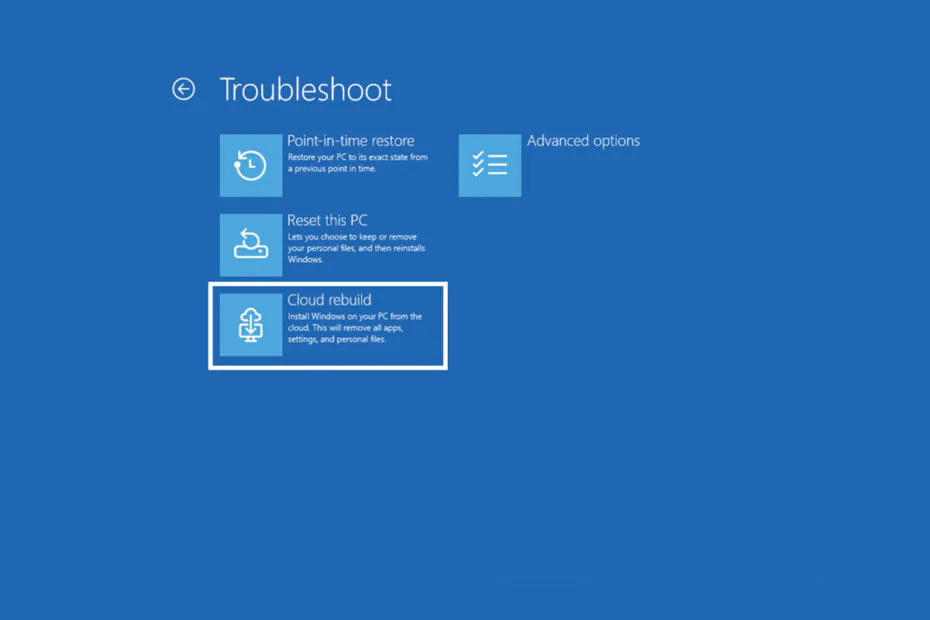
Because this problem often comes up and is encountered by anyone using Windows 11, as a solution, Microsoft has now released a new feature called ‘Cloud rebuild‘ that can be used to restore Windows 11 like new. Unfortunately, the ‘Cloud rebuild’ feature currently only offers a clean install, so the apps you’ve installed will be gone.
The biggest benefit of ‘Cloud rebuild’ is that you don’t need to have a Windows 11 master/image on your USB/drive, so wherever you want to reinstall Windows 11, as long as you have an internet connection, you’ll be able to do the rebuild/installation easily.
Right now, the ‘Cloud rebuild’ feature can only be tried by Windows 11 insider users, with build version 26300.8772.
How to use ‘Cloud rebuild’? Here are the steps.
1. Open Settings or press (Win + I).
2. Go to System → Recovery.
3. Under Advanced startup, click Restart now.
4. After restarting, you’ll enter the Windows Recovery Environment (WinRE).
5. Start it directly from the Windows Recovery Environment (WinRE) by selecting Troubleshoot > Recovery and uninstall > Cloud rebuild.
6. Connect over wired Ethernet or a Wi-Fi network from within WinRE.
7. Review the target Windows build, edition, and language, then confirm the data-loss warning before the rebuild begins.
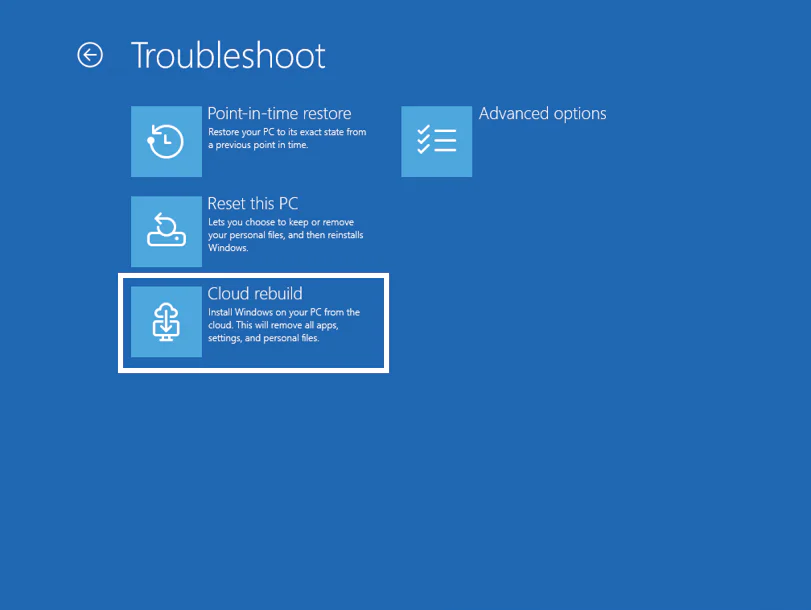
After that, Windows 11 will be installed on your device without needing to use a USB, but make sure your internet connection is stable so the installation goes smoothly.
Maybe you’d like some other interesting articles?